Waking up to a solid red ring on your Amazon Echo device can be alarming, especially when you rely on Alexa for daily tasks, news, or entertainment. This ominous glow, often dubbed the “Red Ring of Death” by users, usually indicates a problem that prevents your smart speaker from functioning correctly. While it might seem like a dire situation, most causes behind this red light are manageable, and with the right steps, you can often get your Alexa device back to its responsive self. This comprehensive guide will walk you through understanding what the red ring signifies, its common culprits, and a step-by-step troubleshooting process to restore your Echo.
What Does the Red Ring of Death on Your Echo Mean?
The Amazon Echo’s light ring serves as a vital communication tool, changing colors to indicate various statuses or issues. When your Echo displays a red light, it’s sending a specific signal about its operational state.
Understanding Echo’s Light Ring Colors
Before diving into the red light, it’s helpful to understand what other colors on your Echo’s light ring typically mean:
- Blue: Alexa is listening or processing a request.
- Yellow: You have a notification or message.
- Green: You are on an active call or Drop In.
- Orange: The device is in setup mode or attempting to connect to Wi-Fi.
- Purple: “Do Not Disturb” mode is on, or there’s a Wi-Fi setup issue.
- White: You are adjusting the device’s volume.
|
Our Picks for the Best Smart Speaker in 2026
As an Amazon Associate I earn from qualifying purchases.
|
||
| Num | Product | Action |
|---|---|---|
| 1 | WiiM Sound Lite Smart Speaker, Hi‑Res 24‑bit/192 kHz, AI RoomFit™ Room Correction, 100W Peak, Wi‑Fi 6E/Bluetooth 5.3, Multi‑Room & Stereo Pairing, Black |

|
| 2 | Bluetooth Speaker with HD Sound and Lights, Portable Wireless, Long-lasting battery life, TWS Pairing, for Home/Party/Outdoor/Travel/Beach, Stocking Stuffers, White Elephant Gifts for Adults (Black) |
|
| 3 | Portable Bluetooth Speaker Valentines Gifts For Him: Powerful Crystal Clear Sound/Romantic Light/IPX5 Waterproof/All Day Playtime/BT 5.3/TWS Paring,Small Wireless Speaker for Outdoor-Travel-Date Night |
|
| 4 | Sony SRS-XB100 Wireless Bluetooth Portable Lightweight Super-Compact Travel Speaker, Durable IP67 Waterproof & Dustproof Shower Speaker, 16 Hour Battery, Versatile Strap, & Hands-free Calling, Black |
|
| 5 | Mini Bluetooth Speaker, Smart Wireless Portable Speaker with Touchscreen, Loud HD Sound, LED Lights, BT5.4, All In One Small Audio for Home/Outdoor/Travel/Shower/Party/Beach/Camping/Hiking/Cycling |
|
| 6 | Sonos Era 100 - White - Wireless, Alexa Enabled Smart Speaker |
|
| 7 | Belkin SOUNDFORM Elite Hi-Fi Smart Speaker + Wireless Charger (Alexa Voice-Controlled Bluetooth Speaker) Sound Technology By Devialet, Fast Wireless Charging for iPhone, Samsung Galaxy & More - White |
|
| 8 | Bluetooth Speaker with HD Sound, Portable Wireless, IPX5 Waterproof, Up to 20H Playtime, TWS Pairing, BT5.3, for Home/Party/Outdoor/Beach, Electronic Gadgets, Birthday Gift (Black) |
|
| 9 | Google Audio Bluetooth Speaker - Wireless Music Streaming, Powerful Sound, Assistant Built-in, Wi-Fi and Bluetooth Connectivity, Smart Home Control, Stereo Pairing - Chalk |
|
| 10 | aowoka Bluetooth Speaker, 2025 Portable Wireless Speakers with Led Light, Bluetooth 5.4, 24H Playtime, Enhanced Bass, IPX7 Waterproof, Outdoor Speaker for Travel, Sport, Party, Biking. |
|
Primary Meaning: Muted Microphone
For the red ring, the most frequent reason for its appearance is a muted microphone. This is a privacy feature, and when activated, Alexa cannot hear your voice commands, effectively disabling its listening capabilities. The mute button, usually marked with a microphone icon, will also often glow red, reinforcing this status.
Other Meanings: Connectivity Issues, Software Glitches, or Hardware Problems
Beyond the muted microphone, a persistent red ring can point to other underlying issues:
- Internet Connectivity: Your Echo might be struggling to connect to your Wi-Fi network or Amazon’s servers. Without a stable internet connection, Alexa cannot perform its functions.
- Software Glitches: Temporary software bugs or outdated firmware can sometimes lead to the red ring, causing the device to freeze or misinterpret commands.
- Hardware Problems: In rarer, more severe cases, the red ring could indicate a physical malfunction or damage to the device’s internal components, such as the microphone array.
- Amazon Server Outages: Occasionally, issues on Amazon’s side can affect your Echo’s functionality, though these are typically widespread and temporary.
Common Causes Behind the Red Ring
Understanding why your Echo device might be displaying the Red Ring of Death is the first step toward finding a solution.
Accidentally Muted Microphone
This is by far the most common reason. Users often press the microphone mute button unintentionally, especially when dusting the device or handling it. When the microphone is muted, the red light ring illuminates to indicate that Alexa is no longer listening. The dedicated mute button itself often glows red too, providing a clear visual cue.
Internet Connectivity Problems
Alexa is a cloud-based assistant, meaning it requires a stable internet connection to function. If your Wi-Fi network is down, unstable, or if the Echo loses its connection to the router, it may display the red ring as it cannot reach Amazon’s servers to process commands. High network traffic or interference can also contribute to this problem.
Software Bugs or Outdated Firmware
Like any smart device, your Amazon Echo runs on software that occasionally needs updates. An outdated operating system or a minor software glitch can sometimes cause the device to behave erratically, leading to the red ring. These bugs can prevent Alexa from initializing correctly or from interacting with the microphone hardware.
Power Supply Issues
An inconsistent or insufficient power supply can also cause your Echo to malfunction. This might be due to a faulty power adapter, a loose connection, or even a problem with the electrical outlet itself. If the device isn’t receiving steady power, it might struggle to boot up or maintain its connection, manifesting as the red light.
Rare Cases: Hardware Malfunction or Server Outages
While less common, sometimes a red ring can indicate a more serious hardware fault within the Echo device. This could be due to physical damage or a component failure. Additionally, widespread outages on Amazon’s servers can temporarily affect Echo devices, preventing them from connecting to Alexa services. In such scenarios, the issue isn’t with your device but with the service itself.
Step-by-Step Troubleshooting Guide to Fix the Red Ring
When your Amazon Echo displays the dreaded red ring, don’t panic. Follow these troubleshooting steps, starting with the simplest solutions, to diagnose and resolve the issue.
Simple Fixes (Start Here)
These initial steps often resolve the red ring quickly and are the easiest to perform.
Check and Unmute the Microphone
The most frequent cause of the red ring is an accidentally muted microphone. Locate the microphone button on top of your Echo device. It’s usually identifiable by a microphone icon or a circle with a diagonal line through it. If this button is glowing red, press it once. You should hear an audible chime, and the red light ring should disappear, indicating the microphone is active again.
Power Cycle Your Echo Device
A simple restart can clear many temporary software glitches. Unplug your Amazon Echo from its power source. Wait for about 10-30 seconds to allow the device to fully discharge. Then, plug it back in. Allow a minute or two for the device to boot up completely. Observe if the red ring disappears after the restart process.
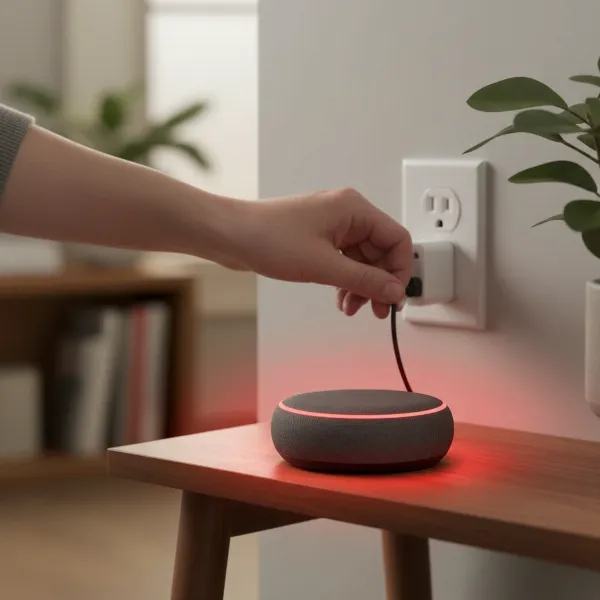 Amazon Echo device being unplugged from a power outlet to resolve the red ring of death
Network-Related Solutions
If the microphone isn’t muted and a power cycle didn’t help, the problem might stem from your Wi-Fi connection.
Restart Your Wi-Fi Router
Your router can sometimes experience minor issues that affect connectivity. Unplug your Wi-Fi router from its power outlet. Wait for at least 30 seconds before plugging it back in. Allow a few minutes for the router to fully restart and re-establish your internet connection. Once your network is back online, check your Echo device.
Optimize Your Wi-Fi Connection
Interference or an overloaded network can disrupt your Echo’s connection.
- Reduce Bandwidth Usage: If many devices are streaming or downloading, temporarily disconnect other devices from your Wi-Fi network to see if the Echo connects.
- Check Dual-Band Settings: If you have a dual-band router (2.4GHz and 5GHz), ensure your Echo is connected to the 2.4GHz network. While 5GHz is faster, 2.4GHz offers better range and penetration, which can be more stable for smart home devices. Consider creating separate SSIDs for each band if your router allows it.
- Relocate Your Echo: Move your Echo device closer to your Wi-Fi router to rule out signal strength issues. Obstacles like thick walls or other electronics can interfere with Wi-Fi signals.
Check Wi-Fi Status via Alexa App
The Alexa app can provide insights into your device’s connection status.
- Open the Alexa app on your smartphone or tablet.
- Go to Devices, then select Echo & Alexa.
- Choose your specific Echo device.
- Check its Device Status. Look for any alerts regarding Wi-Fi connectivity or if the device appears offline. You might be prompted to reconnect to Wi-Fi from within the app.
Software and Account-Related Solutions
Problems with the Alexa app or your Amazon account can also cause the red ring.
Update Alexa App and Echo Firmware
Ensure both your Alexa app and Echo device have the latest software.
- Alexa App: Go to your device’s app store (Google Play Store or Apple App Store) and check for any pending updates for the Alexa app.
- Echo Firmware: Say, “Alexa, check for updates.” If your device can still respond, it will search for and install any available firmware updates. A red ring could sometimes indicate a failed update attempt.
Deregister and Re-register Your Echo in the Alexa App
If connectivity issues persist, resetting your device’s registration might help.
- Open the Alexa app.
- Go to Devices, then Echo & Alexa, and select your device.
- Scroll down to Registered To and tap Deregister. Confirm your choice.
- Once deregistered, you’ll need to set up your Echo again as if it were a new device. Follow the on-screen instructions in the Alexa app.
Advanced Troubleshooting
If none of the above steps have worked, a factory reset might be necessary as a last resort before seeking professional help.
Factory Reset Your Echo Device
A factory reset erases all your settings and returns the Echo to its original state.
- For most Echo devices (e.g., Echo Dot, original Echo): Press and hold the Microphone Off button and the Volume Down button simultaneously for about 20-25 seconds. The light ring will turn orange, then blue, and finally cycle back to orange, indicating it’s ready for setup.
- For some Echo Show devices: You might need to press and hold the Mute and Volume Down buttons. On Echo Show models, a reset button might also be accessible.
- For Echo (1st Generation): Use a paperclip to press and hold the Reset button at the bottom of the device.
After the factory reset, you’ll need to set up your Echo again using the Alexa app. This process will guide you through connecting it to your Wi-Fi and re-linking your Amazon account.
When to Contact Amazon Support
If you have tried all the troubleshooting steps, including a factory reset, and the red ring persists, it might indicate a hardware issue. In such cases, it is best to contact Amazon Customer Support. They can provide further diagnostics, offer replacement options if your device is under warranty, or guide you through more complex solutions.
Red Ring of Death: Troubleshooting at a Glance
| Symptom | Common Causes | Initial Fixes | Advanced Steps |
|---|---|---|---|
| Solid Red Ring | Muted Microphone | Press the Microphone Off button. | Power cycle device, check Alexa app for device status. |
| Red Ring with No Response | No Internet Connection, Software Glitch | Power cycle device, restart router. | Check Wi-Fi in Alexa app, optimize network, update firmware, deregister/re-register device. |
| Red Ring & Red Mute Button | Microphone Stuck/Faulty | Press Microphone Off button repeatedly. | Factory reset device, contact Amazon Support. |
| Red Ring After Setup Attempts | Wi-Fi Configuration Issues | Restart router, ensure 2.4GHz network. | Use Alexa app to reset wireless, check for router interference, try different Wi-Fi. |
Tips for Prevention and Maintenance
Preventing the Red Ring of Death can often be as simple as practicing good device maintenance and mindful usage.
Proper Placement for Optimal Performance
Position your Echo device in a central location, away from walls and other electronic devices that could cause interference. Ensure it has good ventilation and is not exposed to extreme temperatures or direct sunlight, which can impact its internal components. Avoid placing it near large metal objects or in enclosed spaces that might block Wi-Fi signals or microphone pickup.
Regular Software Updates
Keeping your Echo’s software up to date is crucial for optimal performance and security. Amazon regularly releases updates that can fix bugs and improve functionality. Configure your Echo to update automatically, or periodically ask Alexa to “check for updates” to ensure you have the latest firmware. This also applies to the Alexa app on your smartphone, which should also be kept current.
Mindful Microphone Usage
Be aware of the microphone mute button. While it’s an essential privacy feature, accidentally pressing it is the leading cause of the red ring. If you mute your Echo intentionally, remember to unmute it when you want Alexa to listen again. Regularly check the light ring to ensure it’s not glowing red if you expect Alexa to be responsive.
Ensuring Stable Internet Connection
A consistent and strong Wi-Fi connection is the backbone of your Echo’s functionality. Regularly check your router’s performance and consider upgrading if it’s old or struggles with multiple devices. Ensure your Echo is connected to a stable Wi-Fi network, preferably the 2.4GHz band for better range, and minimize interference from other devices or network congestion.
“A smart home thrives on reliable connectivity. Often, the simplest solution for an unresponsive Smart Speaker lies in a stable Wi-Fi network and a quick power cycle.” – David Chen, Smart Home Integration Specialist
Conclusion
Encountering the Red Ring of Death on your Amazon Echo can be frustrating, but it’s rarely a sign of irreparable damage. In most cases, the issue stems from a muted microphone or a temporary connectivity glitch, both of which are easily resolved with a few simple troubleshooting steps. By systematically working through checking the mute button, power cycling the device, and addressing potential Wi-Fi or software issues, you can often restore your Echo to full functionality.
Remember, your Amazon Echo is a robust smart device designed for convenience. Understanding its light ring indicators and knowing the basic troubleshooting techniques empowers you to keep your smart home running smoothly. If you’ve exhausted all options, Amazon Customer Support is always there to help. What’s your go-to first step when your Echo stops responding?
Frequently Asked Questions
What does a solid red light mean on an Amazon Echo?
A solid red light on an Amazon Echo primarily indicates that the device’s microphone has been muted, meaning Alexa cannot hear your voice commands. It can also signify a loss of internet connection, a software glitch, or, in rare cases, a hardware issue preventing proper operation.
Why is my Echo Dot showing a red ring and not responding?
If your Echo Dot shows a red ring and isn’t responding, it’s most likely due to the microphone being turned off. Other common reasons include an unstable Wi-Fi connection preventing it from communicating with Amazon’s servers or a temporary software bug that requires a simple restart.
How do I turn off the red light on my Echo device?
To turn off the red light, first, press the microphone mute button on your Echo device (usually marked with a microphone icon or a circle with a line through it). If that doesn’t work, try unplugging your Echo for 10-30 seconds and plugging it back in to perform a power cycle.
Can a red ring on my Echo mean it’s permanently broken?
While a red ring can be concerning, it rarely indicates that your Echo is permanently broken. Most often, it’s a software or connectivity issue that can be fixed with troubleshooting. Only after exhausting all other steps, including a factory reset, should you consider it a potential hardware failure.
What should I do if my Echo’s red ring persists after troubleshooting?
If the red ring persists after trying all the basic and advanced troubleshooting steps, including checking the mute button, restarting the device and router, updating software, and performing a factory reset, it’s advisable to contact Amazon Customer Support for further assistance.