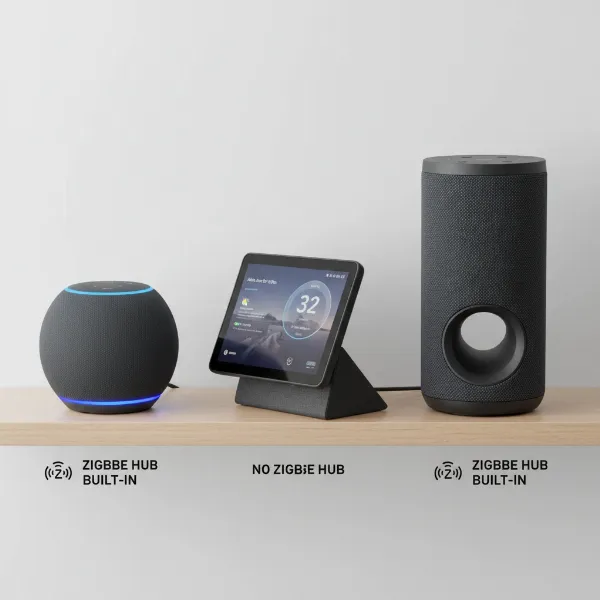
Is your smart speaker playing hard to get with your home Wi-Fi network, leaving you without your favorite music, crucial voice commands, or smart home control? Connectivity issues can be incredibly frustrating, but they are often solvable with a systematic approach. This guide will walk you through the most common reasons why your smart speaker might be refusing to connect to Wi-Fi and provide clear, actionable steps to get it back online. We’ll help you diagnose the problem, implement effective solutions, and understand how to maintain a stable connection for your smart home devices.
Common Reasons Your Smart Speaker Won’t Connect to Wi-Fi
Before diving into solutions, understanding the root cause of your smart speaker’s Wi-Fi woes can save you time and effort. Most smart speakers rely heavily on a stable internet connection to perform their functions, from streaming audio to processing voice commands via cloud services. Without Wi-Fi, your device is essentially a high-tech paperweight.
Understanding Smart Speaker Connectivity
|
Our Picks for the Best Smart Speaker in 2026
As an Amazon Associate I earn from qualifying purchases.
|
||
| Num | Product | Action |
|---|---|---|
| 1 | Sony SRS-XB100 Wireless Bluetooth Portable Lightweight Super-Compact Travel Speaker, Durable IP67 Waterproof & Dustproof Shower Speaker, 16 Hour Battery, Versatile Strap, & Hands-free Calling, Black |

|
| 2 | WiiM Sound Lite Smart Speaker, Hi‑Res 24‑bit/192 kHz, AI RoomFit™ Room Correction, 100W Peak, Wi‑Fi 6E/Bluetooth 5.3, Multi‑Room & Stereo Pairing, Black |
|
| 3 | Bluetooth Speaker with HD Sound and Lights, Portable Wireless, Long-lasting battery life, TWS Pairing, for Home/Party/Outdoor/Travel/Beach, Stocking Stuffers, White Elephant Gifts for Adults (Black) |
|
| 4 | Mini Bluetooth Speaker, Smart Wireless Portable Speaker with Touchscreen, Loud HD Sound, LED Lights, BT5.4, All In One Small Audio for Home/Outdoor/Travel/Shower/Party/Beach/Camping/Hiking/Cycling |
|
| 5 | Bluetooth Speaker with HD Sound, Portable Wireless, IPX5 Waterproof, Up to 20H Playtime, TWS Pairing, BT5.3, for Home/Party/Outdoor/Beach, Electronic Gadgets, Birthday Gift (Black) |
|
| 6 | aowoka Bluetooth Speaker, 2025 Portable Wireless Speakers with Led Light, Bluetooth 5.4, 24H Playtime, Enhanced Bass, IPX7 Waterproof, Outdoor Speaker for Travel, Sport, Party, Biking. |
|
| 7 | Sonos Era 100 - White - Wireless, Alexa Enabled Smart Speaker |
|
| 8 | Google Audio Bluetooth Speaker - Wireless Music Streaming, Powerful Sound, Assistant Built-in, Wi-Fi and Bluetooth Connectivity, Smart Home Control, Stereo Pairing - Chalk |
|
| 9 | Portable Bluetooth Speaker Valentines Gifts For Him: Powerful Crystal Clear Sound/Romantic Light/IPX5 Waterproof/All Day Playtime/BT 5.3/TWS Paring,Small Wireless Speaker for Outdoor-Travel-Date Night |
|
| 10 | Belkin SOUNDFORM Elite Hi-Fi Smart Speaker + Wireless Charger (Alexa Voice-Controlled Bluetooth Speaker) Sound Technology By Devialet, Fast Wireless Charging for iPhone, Samsung Galaxy & More - White |
|
Smart speakers are designed to integrate seamlessly into your home network, acting as a central hub for entertainment and smart home management. They typically connect to your router via Wi-Fi, using either the 2.4 GHz or 5 GHz frequency band. A stable network is crucial not just for initial setup, but for continuous, uninterrupted operation, ensuring your music plays without buffering and your voice commands are registered instantly.
Typical Culprits Behind Connection Failures
Several factors can prevent your smart speaker from connecting or staying connected to your Wi-Fi:
- Incorrect Password or Network Name: This is a surprisingly common oversight. Even a single mistyped character or an incorrect network selection can prevent connection. Wi-Fi passwords are case-sensitive, so double-check every letter and number.
- Router Issues: Your router is the heart of your home network. Outdated firmware, temporary glitches, an overloaded network, or specific security settings (like “Wireless Isolation” or “AP mode”) can interfere with your smart speaker’s ability to join.
- Signal Interference and Range: Physical distance from the router, walls, floors, or other electronic devices (like microwaves, cordless phones, or even other Wi-Fi devices) can weaken your Wi-Fi signal. If your smart speaker is too far or in a “dead zone,” it simply won’t connect reliably.
- Device Glitches: Like any electronic device, your smart speaker itself can experience temporary software bugs or errors that prevent it from establishing a connection.
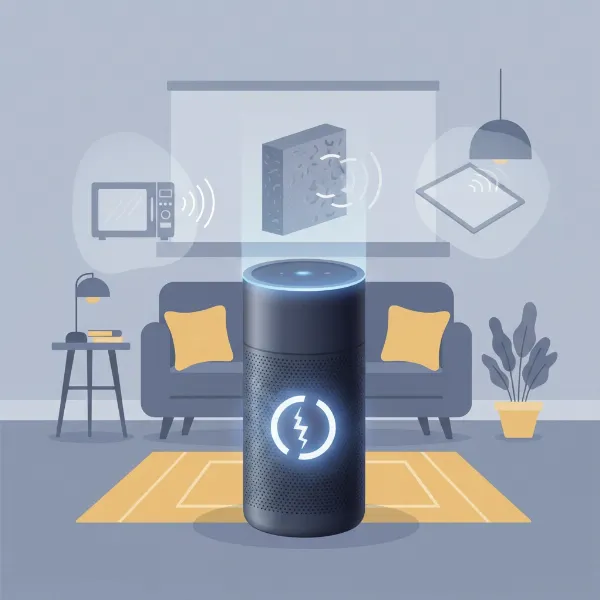 An illustration showing a smart speaker with a broken Wi-Fi symbol, surrounded by common interference sources.
Step-by-Step Guide to Fixing Smart Speaker Wi-Fi Problems
When your smart speaker refuses to connect, a methodical approach is key. Start with the simplest solutions and work your way through more advanced troubleshooting.
The Foundation: Power Cycling Your Devices
Often, the quickest and most effective fix for many tech issues is a simple reboot. This clears temporary glitches and refreshes the connection.
First, reboot your smart speaker. Unplug the smart speaker from its power outlet, wait for at least 30 seconds, and then plug it back in. Allow a minute or two for the device to fully restart.
Next, restart your Wi-Fi router. Unplug your Wi-Fi router from its power outlet. Wait for about 30 to 60 seconds, then plug it back in. Allow several minutes for the router to fully boot up and re-establish your internet connection before attempting to reconnect your smart speaker.
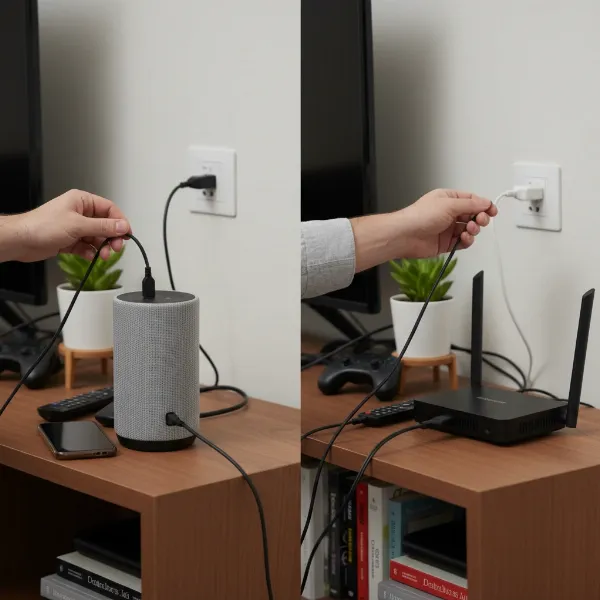 Hands unplugging and plugging in a smart speaker and a Wi-Fi router for troubleshooting.
Verifying Network Credentials and Signal Strength
Incorrect network details or a weak signal are frequent causes of connection failures.
- Double-Checking Wi-Fi Name (SSID) and Password: Open your smart speaker’s companion app and carefully re-enter your Wi-Fi network name (SSID) and password. Ensure there are no typos, extra spaces, or incorrect capitalization. It’s often helpful to copy and paste the password if possible, or try connecting another device to the same Wi-Fi network to confirm the credentials are correct.
- Optimizing Speaker Placement: Move your smart speaker closer to your Wi-Fi router to rule out signal range issues. Ideally, for initial setup and strong performance, it should be in the same room or an adjacent one, away from large metal objects or dense walls that can obstruct the signal.
- Addressing 2.4 GHz vs. 5 GHz Bands: Many older smart speakers, and some newer ones, prefer or can only connect to the 2.4 GHz Wi-Fi band, which offers a wider range. If your router broadcasts both 2.4 GHz and 5 GHz networks with the same name, your smart speaker might struggle to differentiate. Consider renaming your 2.4 GHz and 5 GHz networks with distinct names (e.g., “MyNetwork2G” and “MyNetwork5G”). Temporarily disabling the 5 GHz band in your router settings during setup can also help.
Advanced Router Settings and Interference
Sometimes, router configurations can inadvertently block smart speaker connections.
- Checking Router Firmware Updates: Outdated router firmware can lead to compatibility issues and unstable connections. Log into your router’s administration page (usually via a web browser using its IP address, like 192.168.1.1) and check for available firmware updates. Always follow your router manufacturer’s instructions carefully.
- Disabling Network Isolation Modes: Some routers have features like “Wireless Isolation Mode,” “AP Mode,” or “Access Point Mode” that prevent devices on your network from communicating with each other. While this can enhance security for guest networks, it can hinder your smart speaker’s ability to connect or function properly with other smart home devices. Check your router settings and temporarily disable these if they are enabled.
- Minimizing Signal Interference: Cordless phones, microwaves, baby monitors, and even fluorescent lights can cause electromagnetic interference that disrupts Wi-Fi signals. Try temporarily unplugging such devices or moving them away from your smart speaker and router. If you use Wi-Fi extenders or repeaters, try connecting your smart speaker directly to the main router first to see if the extender is the source of the problem.
“A common oversight for many users is overlooking the router’s configuration. Often, a small tweak in the settings, like disabling client isolation or ensuring 2.4 GHz is prioritized, can resolve persistent connectivity issues.” – Alex Chen, Smart Home Network Specialist
App-Specific Troubleshooting and Device Reset
If network and router adjustments don’t work, the issue might lie with the speaker’s software or its companion app.
- Reviewing Smart Speaker App Permissions: Ensure the companion app on your phone or tablet has the necessary permissions, such as location services and local network access. On iOS, check Settings > Privacy > Location Services and Local Network. For Android, long-press the app icon, go to App Info > Permissions, and ensure location is enabled. Closing and reopening the app, or even reinstalling it, can sometimes resolve app-related glitches.
- Performing a Factory Reset on the Smart Speaker: As a last resort, a factory reset will return your smart speaker to its original out-of-the-box settings, including erasing all Wi-Fi configurations. The specific steps vary by brand (e.g., holding certain buttons, using the app), so consult your device’s manual or manufacturer’s support page. After a factory reset, you will need to set up the smart speaker again from scratch.
- When to Contact Support: If you’ve tried all the above steps and your smart speaker still won’t connect, it might indicate a hardware issue with the device or router. At this point, it’s best to contact the manufacturer’s support team for your smart speaker or your internet service provider (ISP) for router-related assistance.
Smart Speaker Wi-Fi Troubleshooting Checklist
To help you systematically tackle connection problems, here’s a concise checklist of common solutions:
| Issue Category | Common Solutions | When to Apply |
|---|---|---|
| Basic Checks | Power Cycle Speaker & Router, Verify Wi-Fi Password, Optimize Speaker Placement | First steps for any connection issue |
| Network Settings | Use Unique 2.4/5GHz Network Names, Update Router Firmware, Disable Wireless Isolation/AP Mode | When basic checks fail or for persistent issues |
| Device Specific | Check Smart Speaker App Permissions, Perform a Factory Reset on Speaker | As a last resort before contacting manufacturer support |
Tips for Maintaining a Stable Smart Speaker Connection
Preventing future Wi-Fi disconnection issues is just as important as fixing current ones. A little proactive maintenance can ensure your smart speaker remains seamlessly integrated into your smart home.
- Optimal Placement for Consistent Signal: Position your smart speaker in a central location within your home, ideally with a clear line of sight to your router. Avoid placing it in enclosed cabinets, behind large electronics, or near sources of interference. This ensures it receives a strong, consistent Wi-Fi signal, minimizing dropouts.
- Regular Software Updates: Keep both your smart speaker and your Wi-Fi router’s firmware updated. Manufacturers frequently release updates that improve performance, enhance security, and resolve known connectivity bugs. Enabling automatic updates where available can simplify this process.
- Understanding Network Demands: Be mindful of how many devices are simultaneously connected to your Wi-Fi network. An overloaded network can struggle to provide stable connections to all devices, including your smart speaker. For larger homes or extensive smart home setups, consider upgrading to a mesh Wi-Fi system to ensure robust coverage and bandwidth throughout your space.
Conclusion
A smart speaker that won’t connect to Wi-Fi can be a real nuisance, but armed with the right knowledge, you can often resolve these issues yourself. By methodically working through power cycling, verifying network credentials, optimizing placement, adjusting router settings, and addressing app-specific problems, you can bring your smart speaker back online. Remember to perform a factory reset only after exhausting other options, and don’t hesitate to reach out to professional support if the problem persists. Keeping your devices updated and your network optimized will contribute to a more reliable and enjoyable smart home experience. What common Wi-Fi challenges have you faced with your smart speaker, and how did you overcome them?
Frequently Asked Questions
Why does my smart speaker keep disconnecting from Wi-Fi?
Your smart speaker might keep disconnecting due to a weak Wi-Fi signal, interference from other devices, an overloaded network, or outdated router firmware. Ensuring optimal placement, reducing interference, and regularly updating your router and speaker software can help maintain a stable connection.
How do I reset my smart speaker’s Wi-Fi settings?
To reset your smart speaker’s Wi-Fi settings, you typically need to perform a factory reset on the device itself. The exact method varies by brand, but often involves holding down a specific button combination or initiating the reset through the companion app. This will erase all stored network information.
Can I connect my smart speaker to a 5GHz Wi-Fi network?
While many newer smart speakers support 5GHz Wi-Fi, some older models or budget devices may only be compatible with the 2.4 GHz band. Check your smart speaker’s specifications. If your router broadcasts both, consider giving them different names to make network selection clearer for your speaker.
What should I do if my Wi-Fi network has a hidden SSID?
Most Smart Speakers prefer a broadcasted (visible) SSID for easier setup and connection. If your Wi-Fi network has a hidden SSID, you may need to temporarily unhide it during the setup process or manually enter the network name and password into your speaker’s companion app, ensuring extreme accuracy.