Music is the soundtrack to our lives, and smart speakers have revolutionized how we experience it, offering convenience and incredible sound quality. Yet, navigating the ecosystems of different tech giants can sometimes feel like a puzzle. If you’re an Apple Music subscriber who loves the versatility of Google Nest speakers, you might wonder how to bridge these two worlds. The good news is, enjoying your favorite Apple Music tracks on your Google Nest device is not only possible but surprisingly straightforward. This guide will walk you through every step, from linking your accounts to using voice commands and even leveraging Bluetooth for ultimate flexibility.
Understanding Smart Speaker Compatibility: Apple Music on Google Nest
Before diving into the “how-to,” it’s helpful to grasp the relationship between Apple Music and Google Nest speakers. While they originate from competing tech ecosystems, both companies have made strides in cross-platform compatibility to enhance user experience. This means you have a few robust options to ensure your playlists and albums fill your home with sound.
How Apple Music and Google Nest Speakers Interact
|
Our Picks for the Best Smart Speaker in 2026
As an Amazon Associate I earn from qualifying purchases.
|
||
| Num | Product | Action |
|---|---|---|
| 1 | Sony SRS-XB100 Wireless Bluetooth Portable Lightweight Super-Compact Travel Speaker, Durable IP67 Waterproof & Dustproof Shower Speaker, 16 Hour Battery, Versatile Strap, & Hands-free Calling, Black |

|
| 2 | aowoka Bluetooth Speaker, 2025 Portable Wireless Speakers with Led Light, Bluetooth 5.4, 24H Playtime, Enhanced Bass, IPX7 Waterproof, Outdoor Speaker for Travel, Sport, Party, Biking. |
|
| 3 | WiiM Sound Lite Smart Speaker, Hi‑Res 24‑bit/192 kHz, AI RoomFit™ Room Correction, 100W Peak, Wi‑Fi 6E/Bluetooth 5.3, Multi‑Room & Stereo Pairing, Black |
|
| 4 | Google Audio Bluetooth Speaker - Wireless Music Streaming, Powerful Sound, Assistant Built-in, Wi-Fi and Bluetooth Connectivity, Smart Home Control, Stereo Pairing - Chalk |
|
| 5 | Portable Bluetooth Speaker Valentines Gifts For Him: Powerful Crystal Clear Sound/Romantic Light/IPX5 Waterproof/All Day Playtime/BT 5.3/TWS Paring,Small Wireless Speaker for Outdoor-Travel-Date Night |
|
| 6 | Bluetooth Speaker with HD Sound and Lights, Portable Wireless, Long-lasting battery life, TWS Pairing, for Home/Party/Outdoor/Travel/Beach, Stocking Stuffers, White Elephant Gifts for Adults (Black) |
|
| 7 | Belkin SOUNDFORM Elite Hi-Fi Smart Speaker + Wireless Charger (Alexa Voice-Controlled Bluetooth Speaker) Sound Technology By Devialet, Fast Wireless Charging for iPhone, Samsung Galaxy & More - White |
|
| 8 | Sonos Era 100 - White - Wireless, Alexa Enabled Smart Speaker |
|
| 9 | Bluetooth Speaker with HD Sound, Portable Wireless, IPX5 Waterproof, Up to 20H Playtime, TWS Pairing, BT5.3, for Home/Party/Outdoor/Beach, Electronic Gadgets, Birthday Gift (Black) |
|
| 10 | Mini Bluetooth Speaker, Smart Wireless Portable Speaker with Touchscreen, Loud HD Sound, LED Lights, BT5.4, All In One Small Audio for Home/Outdoor/Travel/Shower/Party/Beach/Camping/Hiking/Cycling |
|
Google Nest speakers, powered by Google Assistant, are designed to integrate with a wide array of music streaming services. Apple Music, being one of the largest, is a supported service that can be directly linked through the Google Home app. This primary method allows for seamless voice control, letting you command your music experience with simple spoken requests.
However, it’s crucial to distinguish this from direct “casting” in the way some other services might integrate. While you can link Apple Music to your Google Home app, you generally cannot initiate a cast directly from the Apple Music app on your iPhone to a Google Nest speaker using native casting protocols like Chromecast. For direct control from your phone’s Apple Music app, you’ll typically rely on Bluetooth, effectively turning your Nest speaker into a high-quality Bluetooth output device.
Key Features of Google Nest Speakers
Google Nest speakers offer a robust smart home experience. Their core feature is the integrated Google Assistant, enabling voice control for music, smart home devices, alarms, reminders, and information retrieval. Many models support multi-room audio, allowing you to synchronize music across several Nest speakers in your home. They also integrate with a vast array of smart home devices, acting as a central hub for your connected living space. From the compact Nest Mini to the display-equipped Nest Hub and the audio-focused Nest Audio, there’s a Google Nest device for every need and aesthetic.
Step-by-Step Guide: Linking Apple Music to Google Home App
The most integrated way to play Apple Music on your Google Nest speaker is by linking your Apple Music account directly through the Google Home app. This unlocks voice control and the ability to set Apple Music as your default service.
Prerequisites
Before you begin, ensure you have the following:
- A Google Nest speaker or display that is already set up and connected to your Wi-Fi network.
- The Google Home app installed on your iPhone, iPad, or Android device.
- An active Apple Music subscription. Without a subscription, you won’t be able to link the service.
Detailed Linking Process
Connecting Apple Music to your Google Nest device is a simple, guided process within the Google Home app:
- Open the Google Home app on your smartphone or tablet.
- On the main screen, tap on the “Settings” icon, usually represented by a gear or cogwheel.
- Scroll down and locate the “Music” option under the “Services” section, then tap on it.
- Under the “More music services” list, you should see Apple Music. Tap the “Link” icon next to it.
- A prompt will appear asking you to link your account. Tap “Link Account”.
- You will be redirected to an Apple login page. Sign in with your Apple ID and password that you use for your Apple Music subscription. Follow any on-screen steps to complete the authorization.
- Once successfully linked, Apple Music will appear under “Your music services” in the Google Home app.
Setting Apple Music as Your Default Service
After linking, you have the option to make Apple Music your default music service. This means you won’t have to specify “on Apple Music” in your voice commands every time.
- From the “Music” section in the Google Home app (where you just linked Apple Music), find Apple Music under “Your music services.”
- Tap on the three dots next to Apple Music or directly select it.
- Choose “Set as default”.
Now, when you say, “Hey Google, play some jazz music,” your Nest speaker will automatically use Apple Music to fulfill the request.
Playing Apple Music on Google Nest with Voice Commands
Once your Apple Music account is linked and optionally set as default, the power of voice is yours. Google Assistant excels at understanding natural language, making music control effortless.
Basic Voice Commands
Here are some fundamental commands to get you started:
- “Hey Google, play [song name] by [artist].”
- “Hey Google, play [album name] by [artist].”
- “Hey Google, play my [Apple Music playlist name].”
- “Hey Google, play some [genre] music.”
- “Hey Google, play my Up Next queue.”
- “Hey Google, next song.”
- “Hey Google, pause/resume.”
- “Hey Google, stop the music.”
- “Hey Google, turn up/down the volume.”
- “Hey Google, set volume to [number] (e.g., 5).”
Advanced Voice Commands
Beyond the basics, you can refine your listening experience:
- “Hey Google, what’s playing?” (To identify the current song)
- “Hey Google, play something new.”
- “Hey Google, play more like this.”
- “Hey Google, add this song to my library.” (This functionality is available for some music services and may work with Apple Music, adding the track to your personal library).
- “Hey Google, shuffle this playlist.”
Using Bluetooth to Play Apple Music from Your Device
While linking through the Google Home app offers a seamless voice-controlled experience, there are times you might prefer direct control from the Apple Music app on your phone. This is where Bluetooth pairing comes in handy.
When to Use Bluetooth
Bluetooth is an excellent alternative if:
- You prefer to browse and select music directly within the Apple Music app on your phone.
- You encounter issues with the direct integration.
- You want to play audio from other apps on your phone (like podcasts or audiobooks) through your Google Nest speaker.
- You don’t have an active Apple Music subscription but have downloaded music locally to your device.
Connecting via Bluetooth
Connecting your phone to your Google Nest speaker via Bluetooth is similar to pairing any other Bluetooth device:
- Enable Bluetooth on your iOS or Android device.
- Put your Google Nest speaker into pairing mode. You can do this by saying, “Hey Google, pair Bluetooth” or “Hey Google, connect Bluetooth.” Your speaker will usually respond, indicating it’s ready to pair.
- On your phone, open your Bluetooth settings. Look for your Google Nest speaker in the list of available devices and tap on it to connect.
- Once connected, your Nest speaker will confirm the successful pairing.
- Now, open the Apple Music app (or any other audio app) on your phone and start playing music. The audio will automatically stream to your connected Google Nest speaker.
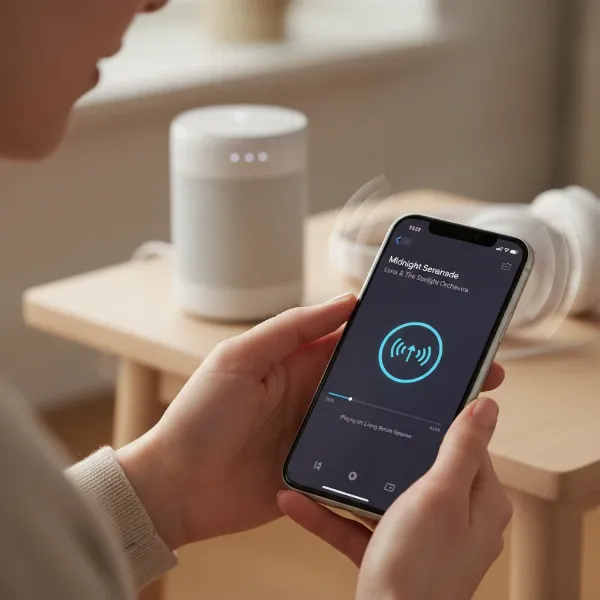 A smartphone with Apple Music playing, wirelessly connected via Bluetooth to a Google Nest speaker
Troubleshooting Common Issues
Even with straightforward instructions, technology can sometimes be finicky. Here are solutions for common problems you might encounter.
Apple Music Not Linking
If you’re having trouble linking your Apple Music account:
- Check your internet connection: Ensure both your phone and Google Nest speaker are connected to a stable Wi-Fi network.
- Update your Google Home app: Make sure you have the latest version installed, as updates often include bug fixes and improved compatibility.
- Verify Apple Music subscription: Double-check that your Apple Music subscription is active and not expired.
- Try unlinking and relinking: If Apple Music appears in the Google Home app but isn’t working, try unlinking it and going through the linking process again.
- Restart devices: A simple reboot of your phone and unplugging/replugging your Google Nest speaker can often resolve minor glitches.
Voice Commands Not Working
If your Google Nest speaker isn’t responding to Apple Music voice commands:
- Speak clearly: Ensure you are enunciating your commands precisely.
- Check default service: Verify that Apple Music is set as your default music service in the Google Home app (if you prefer not to specify “on Apple Music” every time).
- Microphone check: Ensure your speaker’s microphone isn’t muted or obstructed. Look for a physical mute switch.
- App update: Ensure the Google Home app is up to date.
Bluetooth Connectivity Problems
For issues with Bluetooth pairing:
- Proximity: Make sure your phone and Google Nest speaker are within reasonable Bluetooth range (typically around 30 feet or 10 meters).
- Unpair and re-pair: Forget the device from your phone’s Bluetooth settings and also unpair it from the Google Home app’s speaker settings, then try connecting again.
- Restart devices: Restarting both your phone and the Google Nest speaker can often resolve temporary Bluetooth issues.
- Check for interference: Other wireless devices can sometimes cause interference. Try moving them further apart.
The Future of Smart Speaker Integration
The smart home landscape is constantly evolving, with new standards like Matter aiming to improve interoperability between devices from different brands. While direct casting from the Apple Music app to Google Nest speakers isn’t a native feature like it is with Apple’s own HomePod, the commitment from both Apple and Google to support each other’s services via the Google Home app is a strong indicator of a more integrated future. As smart home technology matures, we can expect even more seamless and intuitive ways to enjoy our favorite content across all our devices, regardless of their original ecosystem.
Comparison Table: Methods for Apple Music on Google Nest
| Method | Pros | Cons | Control Source |
|---|---|---|---|
| Google Home App Linking | Full voice control; set as default; multi-room playback | No direct “casting” from Apple Music app; requires Google Home app | Google Assistant (voice) |
| Bluetooth Pairing | Direct control from Apple Music app; plays all phone audio | Requires manual phone control; no voice commands for content | Mobile Device (phone app) |
Tips for an Optimal Listening Experience
To truly maximize your enjoyment of Apple Music on your Google Nest speaker, consider these pro tips:
- Ensure Strong Wi-Fi: A stable and robust Wi-Fi connection is paramount for uninterrupted streaming, especially if you’re using high-quality audio settings.
- Strategic Speaker Placement: The acoustic environment matters. Place your Google Nest speaker away from walls or corners for the best sound dispersion, and avoid placing it behind obstacles.
- Leverage Google Home Routines: Create custom routines in the Google Home app. For instance, a “Good Morning” routine could start your favorite Apple Music playlist at a specific time or with a single command.
- Keep Software Updated: Regularly check for updates for both your Google Home app and your Google Nest speaker’s firmware. Updates often bring new features, performance enhancements, and bug fixes that can improve your music experience.
Conclusion: Bridging the Ecosystems for Your Music
Integrating Apple Music with your Google Nest speakers is a straightforward process that unlocks a world of musical enjoyment. Whether you prefer the hands-free convenience of voice commands through the Google Home app’s direct link or the tactile control of your Apple Music app via Bluetooth, you have excellent options to personalize your listening. By following these simple steps, you can seamlessly blend your Apple Music library with the intelligent capabilities of your Google Nest devices, ensuring your favorite tunes are always just a word or a tap away.
What exciting new playlists will you discover once your Apple Music is flowing through your Google Nest speakers?
Frequently Asked Questions
Can I cast Apple Music directly from the app to Google Nest?
No, direct casting from the Apple Music app to Google Nest speakers using native protocols like Chromecast is not supported. You can either link Apple Music through the Google Home app for voice control or use Bluetooth to stream from your device.
Do I need an Apple Music subscription?
Yes, to link Apple Music via the Google Home app and use voice commands, you need an active Apple Music subscription. However, you can still stream downloaded music from your phone to a Google Nest speaker via Bluetooth without a subscription.
Can I use Apple Music with multiple Google Nest speakers?
Absolutely! Once Apple Music is linked to your Google Home app, you can use Google Assistant’s multi-room audio feature to play Apple Music across multiple Google Nest speakers simultaneously, creating a whole-home audio experience.
What if my Google Home app doesn’t show Apple Music?
Ensure your Google Home app is updated to the latest version. If it’s still missing, try restarting your phone and the Nest speaker. In some rare cases, regional availability might vary, but Apple Music is widely supported.
Can I control Apple Music on Google Nest from my iPhone’s Control Center?
When playing Apple Music via a direct link through the Google Home app, you generally control it with voice commands or directly within the Google Home app. If you’re using Bluetooth to stream, you can control playback from your iPhone’s Control Center, just like with any other Bluetooth speaker.