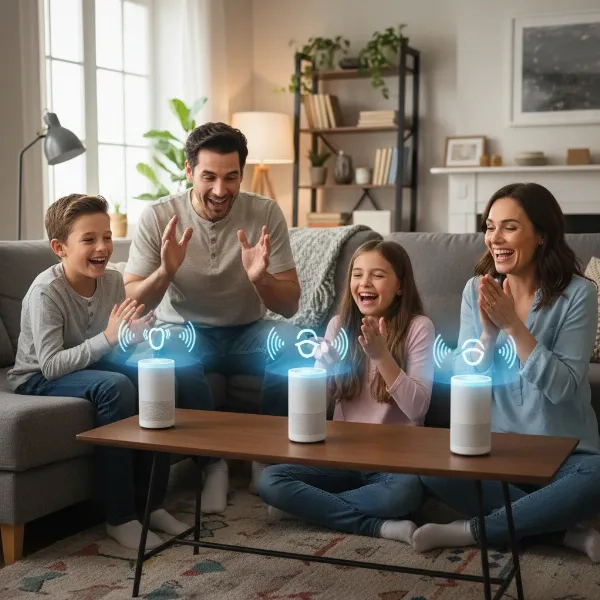
Smart speakers have become indispensable tools in many households, offering everything from instant answers to seamless music playback. However, for families with children, ensuring a safe and age-appropriate experience is paramount. This guide will walk you through the essential steps to set up kid-friendly skills and effectively filter explicit music on popular smart speaker platforms like Amazon Alexa and Google Assistant, transforming your device into a safe and enriching family companion.
Understanding Smart Speaker Parental Controls
What are Smart Speaker Parental Controls?
Smart speaker parental controls are a suite of features designed to help parents manage and restrict the content and interactions children have with voice-activated devices. These controls go beyond basic functionality, allowing for a tailored experience that aligns with family values and ensures digital safety. They empower parents to create a secure environment where children can explore and learn without exposure to inappropriate material.
Why are Parental Controls Essential for Smart Speakers?
Smart speakers are gateways to vast amounts of information and entertainment, much of which is not suitable for all ages. Without proper safeguards, children might inadvertently access explicit music, adult-oriented skills, or unfiltered web content. Implementing parental controls is essential to protect children from potentially harmful content, manage screen time, prevent unauthorized purchases, and foster a healthy relationship with technology from a young age.
Key Features of Parental Control Systems
Modern smart speaker systems offer a range of robust parental control features. These typically include content filtering for music and video, the ability to enable or disable specific skills and apps, creation of child profiles with personalized settings, voice recognition to apply age-specific restrictions, time limits for usage, and options to disable voice purchasing or restrict communication features like “drop-in” calls. These comprehensive tools provide parents with significant control over their children’s smart speaker experience.
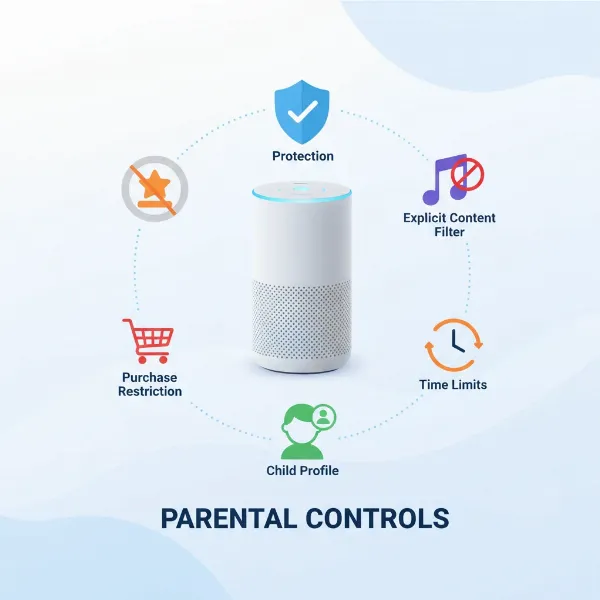 Icons representing various smart speaker parental control features like content filtering and time limits.
Setting Up Kid Skills on Amazon Alexa Devices
Creating Amazon Kids Profiles
To unlock a world of age-appropriate content for your children on Amazon Alexa devices, the first step is to create an Amazon Kids profile. This feature, formerly known as FreeTime, allows you to customize settings for each child individually. To begin, open the Alexa app, navigate to “More,” then “Settings,” and select “Your Profile & Family.” Here, you can add a new child profile and follow the on-screen instructions, including setting up a voice ID so Alexa can recognize your child and provide kid-friendly responses.
Enabling and Managing Kid Skills
Once a child’s profile is established, you can enable specific “kid skills” that are designed for younger audiences. In the Alexa app, go to “More,” then “Settings,” select “Your Profile & Family,” and tap on your child’s profile. From there, select “Add Content” and then the “Alexa Skills” tab. You can then toggle the desired kid skills to “On.” This ensures that children only access skills curated for their age group, promoting safe and educational interactions.
Understanding Parental Consent for Kid Skills
For kid skills in certain regions, such as the US, Amazon requires explicit parental consent to collect personal information from children. The first time your child attempts to use a kid skill, Alexa will prompt a parent to grant permission through the Alexa app. This typically involves verifying identity using a one-time SMS code sent to the mobile number associated with your Amazon account or by entering a credit card security code. Once consent is given, it is saved, so subsequent use of kid skills won’t require re-verification.
Filtering Explicit Music on Amazon Alexa Devices
Activating the Explicit Language Filter
Protecting your family from inappropriate song lyrics is a straightforward process on Amazon Alexa devices. You can activate the explicit language filter through the Alexa app. Open the app, tap “More,” then “Settings,” and select “Music & Podcasts.” Within this section, you will find the “Explicit Language Filter” or “Profanity Filter” option. Simply toggle this feature “on” to prevent songs with explicit lyrics from playing.
Impact Across Devices and Voice Commands
It’s important to note that when you enable the explicit language filter in the Alexa app, this setting typically applies across all Alexa-enabled devices linked to your Amazon account. This provides a consistent, family-friendly listening environment throughout your home. Additionally, for convenience, you can often enable this filter using a simple voice command, such as, “Alexa, turn on the explicit filter,” making it quick to adjust settings as needed.
Implementing Parental Controls for Google Assistant Devices
Leveraging Google Family Link
For Google Assistant devices, comprehensive parental controls are primarily managed through the Google Family Link app. This powerful tool allows parents to create and manage Google Accounts for children under 13, offering a wide range of supervision features. Within the Family Link app, you can select your child’s profile, tap “Controls,” then “Content restrictions,” and finally “Google Assistant” to initiate the parental control setup. You can link your child’s account to your Google Home devices and specify which devices will recognize their voice, ensuring personalized restrictions are applied.
Configuring Digital Wellbeing Settings
Beyond Family Link, Google Home devices offer Digital Wellbeing settings directly within the Google Home app, which are crucial for managing content filters. Open the Google Home app, tap your Profile picture (top right), then “Home settings,” and select “Digital Wellbeing.” Here, you can set up or add device filters, choosing whether these filters apply to “Everyone” or only to “Supervised Accounts and Guests.” This section allows you to manage restrictions for videos, music, and other content accessible via your smart speaker.
Voice Match and Personalized Restrictions
Google’s Voice Match feature is an integral part of its parental control system, enabling the smart speaker to recognize individual voices and apply personalized settings. By setting up Voice Match for each family member, including children, you can ensure that age-appropriate restrictions are automatically enforced when a child speaks to the device. This means your child will receive family-friendly answers to questions and access content suitable for their age, while adults maintain full access to all features.
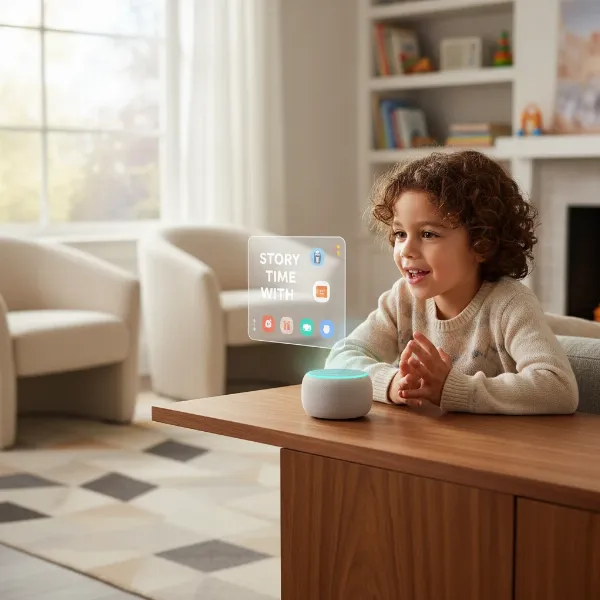 A child interacting with a smart speaker, demonstrating personalized voice recognition and age-appropriate content.
Managing Explicit Music Filters on Google Assistant Devices
Setting Content Filters in the Google Home App
To filter explicit music on your Google Assistant devices, the Google Home app’s Digital Wellbeing section is your primary control center. After navigating to “Digital Wellbeing” through your profile settings, you can choose to filter content for music. This allows you to select options such as allowing all music, playing only non-explicit music from specific services, or blocking all music entirely. These filters ensure that only family-friendly audio content is played on your smart speakers and displays.
Service-Specific Music Settings (e.g., Spotify, YouTube Music)
While the Google Home app provides overarching content filters, it is important to remember that individual music streaming services often have their own explicit content settings. For instance, if you use Spotify with your Google Home device, you may also need to check the explicit content settings within the Spotify app itself. Ensuring these service-specific settings align with your preferences provides an additional layer of protection against unwanted explicit lyrics, ensuring a truly clean listening experience across all platforms.
Best Practices for Smart Speaker Safety
Regularly Reviewing Settings
Technology evolves, and so do the settings and features available on your smart speakers. It is a best practice to regularly review and update your parental control settings to ensure they remain effective and aligned with your family’s needs. This proactive approach helps to catch any new content or features that might bypass existing filters and allows you to adjust permissions as your children grow.
Educating Children on Safe Use
Beyond technical controls, open communication with your children about safe smart speaker use is vital. Teach them about appropriate interactions, what kind of questions to ask, and the importance of not sharing personal information with the device. Empowering children with this knowledge helps them to make responsible choices and understand the ‘why’ behind parental restrictions.
Placing Smart Speakers Strategically
The physical placement of your smart speaker can also contribute to family safety. Consider placing devices in common areas where adult supervision is readily available, rather than in children’s bedrooms. This makes it easier to monitor interactions and ensures the device is used appropriately by all family members.
Smart Speaker Comparison: Parental Control Features
| Model | Key Parental Control Features | Best For | Considerations |
|---|---|---|---|
| Amazon Echo Dot Kids Edition | Amazon Kids profiles, explicit music filter, voice profiles, time limits, educational skills, disables voice purchasing | Younger children, integrated Amazon ecosystem users | Often requires Amazon Kids+ subscription for full premium content |
| Google Nest Mini/Hub | Google Family Link integration, Digital Wellbeing filters (music/video), downtime scheduling, Voice Match, restricted answers | Families within Google ecosystem, older children learning responsibility | Setup can be complex across multiple apps, no 100% guarantee on all content |
| Generic Smart Speaker (with basic OS controls) | May offer basic explicit music filtering, volume limits, Do Not Disturb modes | Users prioritizing basic audio and minimal smart features | Limited granular control over content and child-specific profiles |
Tips for Optimal Smart Speaker Usage and Maintenance with Kids
Positioning Your Smart Speaker for Family Use
The location of your smart speaker significantly impacts its utility and safety for children. Placing it in a central family area like the living room or kitchen allows for shared enjoyment and easier supervision. This encourages collective interaction and helps ensure that content consumed is appropriate for everyone present, rather than isolating usage in a child’s private space.
Regular Software Updates and Privacy Checks
Keeping your smart speaker’s software updated is crucial for security and access to the latest parental control features. Manufacturers frequently release updates that patch vulnerabilities and introduce new ways to manage content. Additionally, regularly check the privacy settings in your companion app to understand what data is being collected and how it’s used, ensuring your family’s information remains protected.
Encouraging Responsible Interaction
Encourage your children to interact with the smart speaker in a responsible and respectful manner. Teach them to use polite commands and understand the device’s capabilities and limitations. This not only promotes good digital citizenship but also helps them utilize the smart speaker as a valuable tool for learning, entertainment, and communication within the boundaries you’ve established.
“A smart speaker with carefully configured parental controls isn’t just a gadget; it’s a controlled gateway to a world of information, designed to enrich and protect your child’s digital exploration.” – Admin, SmartSpeakerBox.com
Conclusion
Implementing effective parental controls and explicit music filters on your smart speakers is an essential step towards creating a safe and enriching environment for your children. By utilizing features like Amazon Kids profiles, Google Family Link, and specific content filters, you can tailor the smart speaker experience to be age-appropriate and secure. Regularly reviewing these settings and educating your children about responsible use will ensure your smart speaker remains a valuable and trusted family tool. What steps will you take today to enhance your family’s smart speaker safety?
Frequently Asked Questions
How do I stop my child from making purchases on a smart speaker?
Most smart speakers offer options to disable voice purchasing or require a PIN for every transaction. On Amazon Alexa, look in the Alexa app under Settings > Account Settings > Voice Purchasing. For Google Assistant, manage payment settings through the Google Home or Family Link app, often requiring password verification for purchases.
Can I set time limits for my child’s smart speaker usage?
Yes, both Amazon Alexa (via Amazon Kids) and Google Assistant (via Digital Wellbeing and Family Link) allow parents to set daily time limits or schedule “downtime” during which the smart speaker will not respond to child profiles, ensuring a balanced approach to screen time.
Are explicit content filters 100% effective on smart speakers?
While highly effective, no content filter is 100% foolproof due to the dynamic nature of content and language. Manufacturers continuously work to improve these filters, but it’s always wise for parents to remain vigilant, regularly check settings, and discuss appropriate content with their children.
How do I ensure my smart speaker recognizes my child’s voice for personalized controls?
For Amazon Alexa, set up a Voice ID for your child in their Amazon Kids profile within the Alexa app. For Google Assistant, utilize Voice Match through the Google Home or Family Link app. This trains the speaker to recognize their voice and apply their specific content restrictions.
What if my child accesses inappropriate content despite filters being on?
First, double-check all parental control and content filter settings in both the Smart Speaker’s companion app and any linked music streaming services. If issues persist, consider retraining voice recognition, reporting the specific content to the platform provider, and reinforcing discussions with your child about safe online behavior.