Smart speakers like the Amazon Echo have become indispensable in our daily lives, from playing music to managing smart home devices. However, there might come a time when you need to perform a factory reset on your Echo. Whether you’re troubleshooting persistent issues, selling your device, or simply want to start fresh, understanding how to restore your Amazon Echo to its original factory settings is essential. This guide will walk you through the process for various Echo models, ensuring a smooth and secure reset.
A factory reset essentially wipes all personal data, settings, and configurations from your Amazon Echo device, returning it to the state it was in when you first unboxed it. This means your Wi-Fi credentials, linked Amazon account, smart home device connections, and any custom settings will be erased. Common reasons for performing a factory reset include resolving glitches, preparing the device for a new owner, or safeguarding your privacy if you’re no longer using it.
Deregistering Your Amazon Echo Device: A Crucial First Step
Before you factory reset your Amazon Echo, especially if you intend to sell or give it away, it’s highly recommended to first deregister it from your Amazon account. While a factory reset often removes the device from your account, explicitly deregistering it provides an extra layer of security, ensuring no personal data or account links remain.
Steps to Deregister Your Echo via the Alexa App:
|
Our Picks for the Best Smart Speaker in 2026
As an Amazon Associate I earn from qualifying purchases.
|
||
| Num | Product | Action |
|---|---|---|
| 1 | Google Audio Bluetooth Speaker - Wireless Music Streaming, Powerful Sound, Assistant Built-in, Wi-Fi and Bluetooth Connectivity, Smart Home Control, Stereo Pairing - Chalk |

|
| 2 | Bluetooth Speaker with HD Sound, Portable Wireless, IPX5 Waterproof, Up to 20H Playtime, TWS Pairing, BT5.3, for Home/Party/Outdoor/Beach, Electronic Gadgets, Birthday Gift (Black) |
|
| 3 | Belkin SOUNDFORM Elite Hi-Fi Smart Speaker + Wireless Charger (Alexa Voice-Controlled Bluetooth Speaker) Sound Technology By Devialet, Fast Wireless Charging for iPhone, Samsung Galaxy & More - White |
|
| 4 | Sonos Era 100 - White - Wireless, Alexa Enabled Smart Speaker |
|
| 5 | Mini Bluetooth Speaker, Smart Wireless Portable Speaker with Touchscreen, Loud HD Sound, LED Lights, BT5.4, All In One Small Audio for Home/Outdoor/Travel/Shower/Party/Beach/Camping/Hiking/Cycling |
|
| 6 | WiiM Sound Lite Smart Speaker, Hi‑Res 24‑bit/192 kHz, AI RoomFit™ Room Correction, 100W Peak, Wi‑Fi 6E/Bluetooth 5.3, Multi‑Room & Stereo Pairing, Black |
|
| 7 | aowoka Bluetooth Speaker, 2025 Portable Wireless Speakers with Led Light, Bluetooth 5.4, 24H Playtime, Enhanced Bass, IPX7 Waterproof, Outdoor Speaker for Travel, Sport, Party, Biking. |
|
| 8 | Sony SRS-XB100 Wireless Bluetooth Portable Lightweight Super-Compact Travel Speaker, Durable IP67 Waterproof & Dustproof Shower Speaker, 16 Hour Battery, Versatile Strap, & Hands-free Calling, Black |
|
| 9 | Bluetooth Speaker with HD Sound and Lights, Portable Wireless, Long-lasting battery life, TWS Pairing, for Home/Party/Outdoor/Travel/Beach, Stocking Stuffers, White Elephant Gifts for Adults (Black) |
|
| 10 | Portable Bluetooth Speaker Valentines Gifts For Him: Powerful Crystal Clear Sound/Romantic Light/IPX5 Waterproof/All Day Playtime/BT 5.3/TWS Paring,Small Wireless Speaker for Outdoor-Travel-Date Night |
|
- Open the Amazon Alexa app on your smartphone or tablet.
- Tap the “Devices” icon located in the bottom navigation bar.
- Tap “Echo & Alexa” at the top.
- Select the specific Echo device you wish to deregister from the list.
- Scroll down to the “Registered To” section (it will likely show your name).
- Tap “Deregister” and confirm your choice in the pop-up window.
Steps to Deregister Your Echo via the Amazon Website:
- Visit Amazon’s “Manage Your Content and Devices” page on a web browser.
- Log in to your Amazon account if prompted.
- Click on the “Devices” tab.
- Locate and select the Echo device you want to deregister.
- Click the “Deregister” button and confirm.
Once deregistered, the device is no longer linked to your Amazon account, making it safe for a new user.
How to Factory Reset Your Amazon Echo (Alexa App Method)
This method is generally universal for most Amazon Echo devices and often the easiest if your device is still connected to Wi-Fi and responsive through the app.
Step-by-Step Guide:
- Launch the Amazon Alexa app on your mobile device.
- Tap the “Devices” icon at the bottom.
- Select “Echo & Alexa” from the top menu.
- Choose the specific Echo device you want to reset.
- Scroll down the device settings page.
- Look for and tap “Factory Reset.”
- Confirm your decision by tapping “Factory Reset” again in the prompt.
Your Echo device will then begin the reset process, which may take several minutes. Once complete, it will display a setup screen or enter setup mode with an orange light ring, indicating it’s ready for a new setup.
How to Factory Reset Specific Amazon Echo Models
Different Echo models and generations have unique button combinations or procedures for a physical factory reset. These methods are particularly useful if your device is unresponsive or disconnected from Wi-Fi.
Echo Dot (3rd, 4th, 5th Generation & Newer)
For most recent Echo Dot models, the reset process involves holding the Action button.
- Ensure your Echo Dot is plugged in.
- Press and hold the Action button (the button with a small dot) for about 20-25 seconds.
- The light ring will first turn orange, indicating setup mode, then turn blue, and finally orange again as it begins the reset process.
- Keep holding until Alexa announces, “Resetting your device,” or the light ring turns off and on again, then flashes orange. This indicates the reset is complete, and the device is in setup mode.
Echo Dot (2nd Generation)
The second-generation Echo Dot uses a different button combination.
- Plug in your Echo Dot.
- Simultaneously press and hold the Volume Down button and the Microphone Off button (the one with a crossed-out microphone) for about 20 seconds.
- The light ring will turn orange, then blue, and finally flash orange as the device enters setup mode, signifying a successful reset.
Original Amazon Echo (1st Generation)
The very first Amazon Echo typically has a small pinhole reset button.
- Using a paperclip or a similar small tool, locate the reset button (often a small pinhole at the bottom of the device).
- Press and hold the reset button for 5 seconds.
- The light ring will turn off and then turn orange, indicating it’s entering setup mode.
Echo Show Devices (with Screens)
For Echo Show models (e.g., Echo Show 5, 8, 10, 15), you can use the touchscreen interface or a voice command.
Touchscreen Method:
- Swipe down from the top of the Echo Show’s screen to open the quick settings menu.
- Tap the “Settings” gear icon.
- Scroll down and tap “Device Options.”
- Tap “Reset to Factory Defaults.” Some models might have “About This Device” before “Reset to Factory Defaults.”
- You might see an option to “Reset to factory defaults but retain smart home device connections.” If you’re selling or giving it away, choose the full factory reset. If keeping it in your home but troubleshooting, this option might be useful.
- Confirm your selection to begin the reset. The device will restart and show the initial setup screen.
Voice Command Method:
- Say, “Alexa, factory reset.”
- Alexa will prompt you to confirm the action on the screen.
- Follow the on-screen instructions to complete the reset.
“A factory reset is more than just a quick fix; it’s a complete fresh start for your Smart Speaker, crucial for both performance and privacy.” – Alex Chen, Smart Home Security Expert
Quick Reference for Popular Echo Models
| Model | Reset Method | Key Buttons/Actions |
|---|---|---|
| Echo Dot (3rd, 4th, 5th Gen) | Physical Button | Press and hold the Action button for ~20-25 seconds. |
| Echo Dot (2nd Gen) | Physical Buttons | Press and hold Volume Down + Mute buttons simultaneously for ~20 seconds. |
| Original Amazon Echo (1st Gen) | Physical Button (Pinhole) | Use a paperclip to press and hold the reset button for ~5 seconds. |
| Echo Show (All Generations) | Touchscreen / Voice Command / Alexa App | Swipe down > Settings > Device Options > Reset to Factory Defaults; or “Alexa, factory reset”; or via Alexa app. |
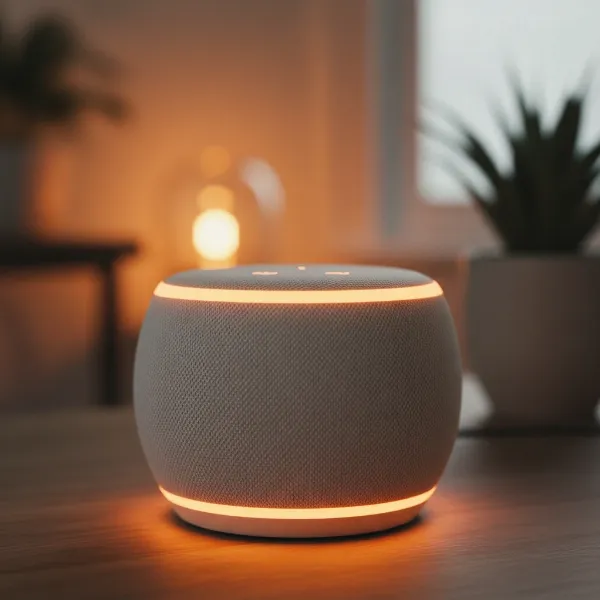 An Amazon Echo Dot device with an orange light ring, symbolizing a device being factory reset and ready for setup.
Important Considerations After Resetting
After you factory reset your Amazon Echo, the device will revert to its out-of-the-box state. You’ll need to go through the initial setup process again, just as you did when it was new. This involves connecting it to your Wi-Fi network and registering it to an Amazon account via the Alexa app. Remember that all personalized data, including your preferences, skills, and smart home connections, will be gone.
Troubleshooting Common Reset Issues
Sometimes, a factory reset doesn’t go as planned. If your Echo device isn’t responding as expected during or after a reset, try these tips:
- Power Cycle: Unplug the Echo device from its power source for at least 30 seconds, then plug it back in. This soft reboot can often resolve minor glitches.
- Verify Power: Ensure the device is properly plugged into a working outlet.
- Exact Timing: For button resets, be precise with the hold times. Releasing too early or holding too long past the prompt can cause issues.
- Alexa App: If physical buttons aren’t working, try the Alexa app method if the device still appears there and has a network connection.
- Amazon Support: If all else fails, contact Amazon customer support. They can often provide specific troubleshooting steps for your device model.
Conclusion
Factory resetting your Amazon Echo device is a straightforward process that can resolve various issues, prepare it for a new owner, or simply give you a fresh start. By understanding the specific methods for different models and remembering to deregister your device beforehand, you can ensure a secure and effective reset. Whether through the Alexa app or physical buttons, empowering yourself with this knowledge helps you maintain control over your smart home technology.
Do you often factory reset your smart devices, or is it a rare occurrence for you?
Frequently Asked Questions
Does a factory reset remove my Amazon Echo from my Amazon account?
A factory reset typically unlinks the device from your Amazon account. However, for complete peace of mind, especially when selling or gifting, it’s strongly recommended to also manually deregister the device through the Alexa app or Amazon’s “Manage Your Content and Devices” website. This two-step approach ensures no lingering ties to your personal account remain.
How long does an Echo factory reset take?
The actual factory reset process, once initiated, usually takes a few minutes for the device to wipe its data and reboot into setup mode. The overall time will depend on how quickly you follow the steps, especially for button-based resets where precise timing is needed.
Can I factory reset an Echo without the Alexa app?
Yes, many Amazon Echo devices can be factory reset using physical buttons directly on the device, without needing the Alexa app. The specific button combination varies by model and generation, such as holding the Action button for Echo Dots or using a pinhole button on older models.
What is the difference between restarting and factory resetting an Echo?
Restarting your Echo (unplugging and replugging it) is a simple reboot that often fixes minor software glitches without affecting any settings or data. A factory reset, however, completely erases all personal data, settings, and connections, returning the device to its original, out-of-the-box state, requiring a full re-setup.