There’s nothing quite like the immersive experience of music flowing seamlessly through every room of your home. However, the magic of multi-room smart speaker setups can quickly turn frustrating when audio falls out of sync, creating an irritating echo or delay. This common problem, known as audio drift or lag, can detract significantly from your listening pleasure. If you’ve ever walked from one room to another only to hear a jarring, out-of-sync soundtrack, you know how disruptive it can be. This comprehensive guide will walk you through identifying the root causes of multi-room audio sync issues and provide step-by-step solutions to restore harmonious sound across all your smart speakers.
Understanding Multi-Room Audio Sync Issues
Multi-room audio systems allow you to play the same music across multiple speakers simultaneously, creating a unified soundscape throughout your home. When working correctly, the experience is fluid and immersive. However, several factors can disrupt this delicate synchronization, leading to noticeable delays or echoes between speakers. Understanding these underlying causes is the first step toward effective troubleshooting.
What Causes Audio Sync Problems?
|
Our Picks for the Best Smart Speaker in 2026
As an Amazon Associate I earn from qualifying purchases.
|
||
| Num | Product | Action |
|---|---|---|
| 1 | Sony SRS-XB100 Wireless Bluetooth Portable Lightweight Super-Compact Travel Speaker, Durable IP67 Waterproof & Dustproof Shower Speaker, 16 Hour Battery, Versatile Strap, & Hands-free Calling, Black |

|
| 2 | Sonos Era 100 - White - Wireless, Alexa Enabled Smart Speaker |
|
| 3 | Belkin SOUNDFORM Elite Hi-Fi Smart Speaker + Wireless Charger (Alexa Voice-Controlled Bluetooth Speaker) Sound Technology By Devialet, Fast Wireless Charging for iPhone, Samsung Galaxy & More - White |
|
| 4 | Mini Bluetooth Speaker, Smart Wireless Portable Speaker with Touchscreen, Loud HD Sound, LED Lights, BT5.4, All In One Small Audio for Home/Outdoor/Travel/Shower/Party/Beach/Camping/Hiking/Cycling |
|
| 5 | aowoka Bluetooth Speaker, 2025 Portable Wireless Speakers with Led Light, Bluetooth 5.4, 24H Playtime, Enhanced Bass, IPX7 Waterproof, Outdoor Speaker for Travel, Sport, Party, Biking. |
|
| 6 | Google Audio Bluetooth Speaker - Wireless Music Streaming, Powerful Sound, Assistant Built-in, Wi-Fi and Bluetooth Connectivity, Smart Home Control, Stereo Pairing - Chalk |
|
| 7 | Bluetooth Speaker with HD Sound and Lights, Portable Wireless, Long-lasting battery life, TWS Pairing, for Home/Party/Outdoor/Travel/Beach, Stocking Stuffers, White Elephant Gifts for Adults (Black) |
|
| 8 | WiiM Sound Lite Smart Speaker, Hi‑Res 24‑bit/192 kHz, AI RoomFit™ Room Correction, 100W Peak, Wi‑Fi 6E/Bluetooth 5.3, Multi‑Room & Stereo Pairing, Black |
|
| 9 | Portable Bluetooth Speaker Valentines Gifts For Him: Powerful Crystal Clear Sound/Romantic Light/IPX5 Waterproof/All Day Playtime/BT 5.3/TWS Paring,Small Wireless Speaker for Outdoor-Travel-Date Night |
|
| 10 | Bluetooth Speaker with HD Sound, Portable Wireless, IPX5 Waterproof, Up to 20H Playtime, TWS Pairing, BT5.3, for Home/Party/Outdoor/Beach, Electronic Gadgets, Birthday Gift (Black) |
|
Audio sync problems in multi-room speaker groups often stem from a combination of network limitations, device processing differences, and software glitches. One primary culprit is network congestion or a weak Wi-Fi signal, which can cause data packets to arrive at different speakers at varying times. If your Wi-Fi network struggles to provide consistent bandwidth, especially with multiple devices streaming simultaneously, audio lag becomes more likely.
Another significant factor is the varying processing times of individual smart speakers. Different models, or even the same model with slightly different internal components or firmware versions, might process audio data at slightly different speeds. This minute difference accumulates over time, causing speakers to fall out of sync. Outdated software or firmware on your speakers, router, or even the streaming app can introduce bugs that affect synchronization. Additionally, physical connections, such as a speaker connected to a soundbar or TV via an audio cable, can sometimes introduce their own delays that complicate wireless multi-room syncing.
Common Scenarios for Sync Problems
You might encounter several tell-tale signs of multi-room audio sync problems. The most common is a noticeable audio delay or lag between speakers, where the music in one room is slightly ahead or behind another. This creates an irritating echo effect, especially when moving between spaces. In other instances, you might experience dropped audio or stuttering as the system struggles to maintain a consistent stream to all devices. Sometimes, despite appearing connected, different speakers might play at slightly different speeds, causing a gradual “drift” in synchronization over time. These issues are particularly prevalent when mixing different brands or generations of smart speakers, as their internal mechanisms for handling multi-room audio may not be perfectly compatible.
Initial Troubleshooting Steps for Seamless Audio
Before diving into complex network settings or device-specific adjustments, it’s often best to start with some fundamental troubleshooting steps. Many multi-room audio sync issues can be resolved with simple actions that reset connections and clear temporary glitches. These basic checks ensure that your system has a clean slate to operate from.
1. Basic Checks and Restarts
A quick restart can often resolve a myriad of tech issues, and multi-room audio is no exception. Begin by power cycling all involved devices: your Wi-Fi router, modem, and every smart speaker in your multi-room group. Unplug them from power for at least 60 seconds, then plug them back in, starting with the modem, then the router, and finally your smart speakers. This process refreshes network connections and clears any temporary software hang-ups that might be causing synchronization problems. You should also check your internet connection stability and speed to ensure your network can handle the demands of streaming to multiple devices.
2. Verify Software and Firmware Updates
Keeping your devices updated is crucial for optimal performance and compatibility. Manufacturers frequently release software and firmware updates that include bug fixes, performance improvements, and better synchronization protocols for multi-room audio. Check for updates on all your smart speakers, as well as your Wi-Fi router. For smart speakers, these updates are usually managed through their respective companion apps (e.g., Google Home app, Alexa app). Ensuring everything is running on the latest version minimizes the chances of software-related sync issues.
3. Recreating Speaker Groups
Sometimes, the multi-room group itself can become corrupted, leading to persistent sync problems. If basic restarts and updates don’t work, consider deleting and recreating your speaker group from scratch within your smart speaker’s app. This process forces the system to re-establish connections and configurations for all devices, often resolving underlying glitches. Remember to give your group a simple, intuitive name for easier voice commands later.
Optimizing Your Home Network for Flawless Audio
Your home Wi-Fi network is the backbone of your multi-room audio system. Any instability or congestion here can directly impact audio synchronization. Investing time in optimizing your network setup can dramatically improve the reliability and performance of your smart speakers.
Enhancing Wi-Fi Signal Strength and Placement
A strong and stable Wi-Fi signal is paramount for seamless multi-room audio. Position your Wi-Fi router centrally within your home to ensure all your smart speakers receive adequate signal strength. Walls, large appliances, and other electronic devices can interfere with Wi-Fi signals, creating dead zones or weak spots that lead to audio dropouts and sync issues. Experiment with moving your router away from common electronic distractions like microwaves, cordless phones, or other gadgets that operate on similar frequencies.
It is also important to ensure all your smart speakers are connected to the same Wi-Fi network and, ideally, the same frequency band. Many routers offer both 2.4 GHz and 5 GHz bands. While 5 GHz offers faster speeds and less interference, its range is shorter than 2.4 GHz. Consistency is key; if some speakers are on 2.4 GHz and others on 5 GHz, it can sometimes cause synchronization inconsistencies. If your home is large or has many obstructions, consider upgrading to a mesh Wi-Fi system or using Wi-Fi extenders to ensure consistent coverage throughout your living space. These solutions create a more robust and unified network, which is essential for stable multi-room audio.
Reducing Wi-Fi Interference
Beyond router placement, other sources can interfere with your Wi-Fi signal. Common household electronics like cordless phones, baby monitors, and microwave ovens operate on similar frequencies, potentially disrupting your network. To minimize interference, keep these devices away from your router and smart speakers. If your router supports it, you might also consider changing your Wi-Fi channel to a less congested one via your router’s settings. Some advanced routers offer Quality of Service (QoS) settings, which allow you to prioritize multi-room audio traffic over other network activities, ensuring your music streams get preferential treatment.
Platform-Specific Solutions for Audio Synchronization
Both Google Home and Amazon Alexa offer built-in features to help correct audio synchronization issues, acknowledging that even with optimal network conditions, slight delays can occur. These platform-specific tools provide fine-tuned control to achieve perfect harmony across your speaker groups.
Google Home/Nest Speakers: Group Delay Correction
Google Home and Nest speakers provide a dedicated “Group delay correction” feature designed to fine-tune synchronization within multi-speaker groups. To access this setting:
- Ensure your mobile device or tablet is connected to the same Wi-Fi network and Google Account as your smart speakers.
- Cast music to the group that is experiencing sync issues.
- Open the Google Home app.
- Touch and hold the device’s tile that is playing last or seems to be lagging.
- Tap Settings > Audio > Group delay correction.
- While the music is playing, move the slider left or right until the audio sounds in sync. It’s recommended to stand between the out-of-sync speakers to better discern the delay.
- If your group has more than two speakers, mute all but two out-of-sync speakers to isolate the problem, then repeat the adjustment. Only increase the delay correction for the speaker that is playing last.
“Group delay correction adjustments should only be made while music is casting to the group. This allows you to immediately hear the changes you’ve made.” – Google Nest Help
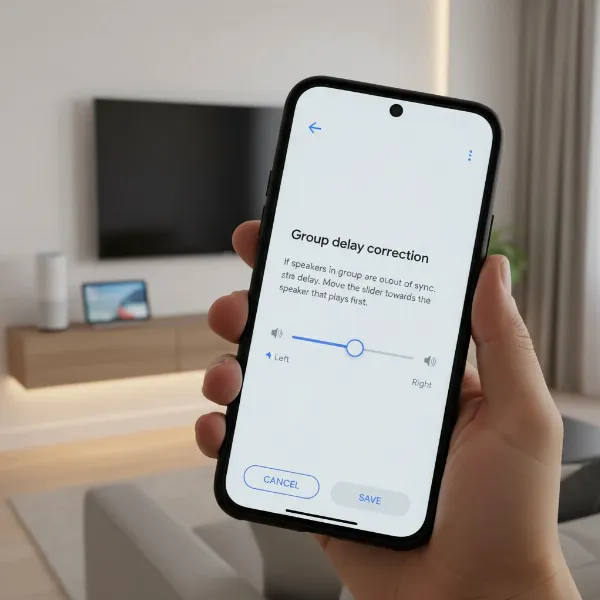 Google Home app showing group delay correction slider for multi-room audio sync
Amazon Alexa (Echo Devices): Audio Sync Problems?
Amazon Echo devices also offer a tool to help manage audio synchronization, typically found within the Alexa app:
- Open the Amazon Alexa app.
- Navigate to the “Devices” tab at the bottom right.
- Scroll down and select the Multi-Room Music group where the issue is occurring.
- Look for and tap the “Audio Sync Problems?” link.
- The app may guide you to mute speakers one by one to identify which device is causing the delay. Once identified, you can adjust a slider position for the connected speaker that needs re-synchronization and then select “Apply”.
It’s important to note that direct Bluetooth speakers generally cannot join Alexa multi-room groups. While you can pair a Bluetooth speaker to a single Echo device, it won’t be part of the synchronized multi-room experience with other Echo speakers. If you are using an Echo device connected to external speakers (like a home stereo or soundbar), ensure that any audio processing on that external device is disabled, as this can introduce additional delays [cite: 5 (from previous search result)].
 Alexa app interface showing multi-room music group and audio sync settings
Advanced Troubleshooting and Best Practices
When basic and platform-specific fixes don’t fully resolve your multi-room audio sync issues, it’s time to delve into more advanced troubleshooting techniques and adopt best practices to maintain optimal performance. These steps focus on identifying persistent problems and establishing a robust multi-room audio environment.
Identifying the Problematic Speaker
If you have a large multi-room group, pinpointing the single speaker causing the delay can be challenging. A useful technique is to mute individual speakers one at a time while music is playing. This helps you isolate which device is consistently out of sync, allowing you to focus your troubleshooting efforts on that specific unit. Once identified, you can apply platform-specific delay corrections or consider moving that speaker to a different location.
Resetting Individual Speakers to Factory Settings
As a last resort for a stubborn speaker that consistently causes sync issues, a factory reset can sometimes be the solution. This returns the device to its original state, clearing any corrupted settings or deep-seated software glitches. Be aware that you will need to set up the speaker again from scratch, re-adding it to your Wi-Fi network and multi-room groups. Consult your speaker’s manual or the manufacturer’s website for specific factory reset instructions, as these vary by model.
Strategic Speaker Placement and Avoiding Mixed Ecosystems
Optimal speaker placement goes beyond just Wi-Fi signal. Avoid placing speakers too close to each other, as this can sometimes create an echo rather than a unified sound. Conversely, placing them too far apart in a large home can exacerbate network-related delays. Experiment with different positions to find the sweet spot that provides both good Wi-Fi coverage and balanced sound projection.
While many smart home enthusiasts enjoy mixing brands, for critical audio listening and seamless multi-room synchronization, it’s often best to stick to speakers within the same ecosystem (e.g., all Google Home, all Amazon Echo, or a dedicated system like Sonos). Proprietary systems like Sonos are specifically designed to manage synchronization across their own devices with greater precision, often using a dedicated mesh network for audio data. Mixing different systems can introduce inherent compatibility challenges that are harder to overcome.
Maintaining Consistent Device Updates
Beyond initial updates, make it a habit to regularly check for and install updates for all your smart speakers, routers, and the controlling apps. Manufacturers continually refine their software, and staying current can prevent future sync problems before they arise. Think of it as preventative maintenance for your audio system.
Comparison of Multi-Room Audio Ecosystems and Their Sync Management
Different smart speaker ecosystems approach multi-room audio synchronization with varying features and underlying technologies. Understanding these differences can help you manage expectations and troubleshoot more effectively.
| Ecosystem | Sync Correction Features | Network Sensitivity | Ease of Setup | Notes |
|---|---|---|---|---|
| Google Home/Nest Audio | “Group delay correction” slider | Moderate | High | User-adjustable delay for individual speakers; relies on robust Wi-Fi. |
| Amazon Alexa (Echo Devices) | “Audio Sync Problems?” in app, manual adjustment | Moderate | High | App-guided calibration for specific speakers; generally does not support Bluetooth speakers in groups. |
| Sonos | Proprietary mesh network, Trueplay | Low (internal) | Very High | Renowned for stable sync; uses its own network, reducing reliance on home Wi-Fi for audio. |
| Apple HomePod (AirPlay 2) | Automatic, integrated with iOS/macOS | High (Wi-Fi quality) | High | Relies on AirPlay 2 protocol for multi-device streaming; sensitive to network stability. |
Tips for Using and Maintaining Multi-Room Audio Systems
To ensure your multi-room audio experience remains consistently excellent, consider these ongoing tips for usage and maintenance. Proactive care can prevent many common synchronization headaches.
- Perform Regular Reboots: Occasionally restarting your router and all smart speakers, even when not experiencing issues, can help clear caches and refresh network connections, promoting stability.
- Monitor Network Performance: Keep an eye on your Wi-Fi network’s health. If you notice general internet slowdowns or frequent device disconnections, addressing these underlying network issues will also benefit your multi-room audio.
- Keep Everything Updated: Make sure all your smart speakers, the controlling app, and your Wi-Fi router’s firmware are always on their latest versions. This minimizes bugs and improves compatibility.
- Understand Brand Limitations: As discussed, mixing different brands can be tricky. If you frequently encounter issues, consolidating to a single ecosystem for multi-room groups might offer a more reliable experience.
- Use Supported Streaming Services: Ensure your preferred music streaming service fully supports multi-room playback. Services like Spotify Premium and Amazon Music are generally reliable for this purpose.
Conclusion
Audio sync issues in multi-room Smart Speaker groups can be incredibly frustrating, transforming a desired