Smart speakers have seamlessly integrated into our daily lives, offering unparalleled convenience from playing music to managing smart home devices. Yet, this very convenience, especially the voice purchasing feature, can sometimes lead to unintended consequences—like accidental orders. For families with curious children, busy professionals, or anyone simply looking for more control, knowing how to disable voice purchasing is crucial for peace of mind and budget protection. This guide will walk you through the essential steps to secure your smart speakers from unwanted transactions, ensuring your devices only purchase what you truly intend.
Understanding Voice Purchasing and Its Risks
Voice purchasing is a feature on smart speakers that allows users to buy products or services simply by speaking a command. Platforms like Amazon Alexa and Google Assistant have made this incredibly easy, often linking directly to your default payment methods and shipping addresses. While designed for convenience, this seamless integration presents several risks.
Accidental orders can arise from various scenarios. Children, unaware of the financial implications, might innocently ask for toys or games. Guests interacting with your smart speaker could inadvertently trigger purchases. Even background conversations, TV shows, or radio programs can sometimes be misinterpreted by the sensitive microphones of these devices, leading to purchases you never intended. These unexpected transactions can be a source of frustration, financial strain, and privacy concerns, highlighting the importance of managing this feature proactively. Leading smart speaker brands like Amazon, Google, and Apple all offer voice assistant capabilities, and understanding their respective purchasing controls is key to preventing accidental orders.
Step-by-Step Guide: Disabling Voice Purchasing on Amazon Alexa
Amazon’s Alexa-enabled devices, including Echo, Echo Dot, and Echo Show, are renowned for their robust shopping capabilities. Disabling voice purchasing on these devices or adding an extra layer of security is straightforward and can be done through the Alexa app or Amazon’s website.
Disabling Voice Purchasing via the Alexa App
|
Our Picks for the Best Smart Speaker in 2026
As an Amazon Associate I earn from qualifying purchases.
|
||
| Num | Product | Action |
|---|---|---|
| 1 | aowoka Bluetooth Speaker, 2025 Portable Wireless Speakers with Led Light, Bluetooth 5.4, 24H Playtime, Enhanced Bass, IPX7 Waterproof, Outdoor Speaker for Travel, Sport, Party, Biking. |

|
| 2 | WiiM Sound Lite Smart Speaker, Hi‑Res 24‑bit/192 kHz, AI RoomFit™ Room Correction, 100W Peak, Wi‑Fi 6E/Bluetooth 5.3, Multi‑Room & Stereo Pairing, Black |
|
| 3 | Google Audio Bluetooth Speaker - Wireless Music Streaming, Powerful Sound, Assistant Built-in, Wi-Fi and Bluetooth Connectivity, Smart Home Control, Stereo Pairing - Chalk |
|
| 4 | Belkin SOUNDFORM Elite Hi-Fi Smart Speaker + Wireless Charger (Alexa Voice-Controlled Bluetooth Speaker) Sound Technology By Devialet, Fast Wireless Charging for iPhone, Samsung Galaxy & More - White |
|
| 5 | Bluetooth Speaker with HD Sound, Portable Wireless, IPX5 Waterproof, Up to 20H Playtime, TWS Pairing, BT5.3, for Home/Party/Outdoor/Beach, Electronic Gadgets, Birthday Gift (Black) |
|
| 6 | Sonos Era 100 - White - Wireless, Alexa Enabled Smart Speaker |
|
| 7 | Bluetooth Speaker with HD Sound and Lights, Portable Wireless, Long-lasting battery life, TWS Pairing, for Home/Party/Outdoor/Travel/Beach, Stocking Stuffers, White Elephant Gifts for Adults (Black) |
|
| 8 | Sony SRS-XB100 Wireless Bluetooth Portable Lightweight Super-Compact Travel Speaker, Durable IP67 Waterproof & Dustproof Shower Speaker, 16 Hour Battery, Versatile Strap, & Hands-free Calling, Black |
|
| 9 | Portable Bluetooth Speaker Valentines Gifts For Him: Powerful Crystal Clear Sound/Romantic Light/IPX5 Waterproof/All Day Playtime/BT 5.3/TWS Paring,Small Wireless Speaker for Outdoor-Travel-Date Night |
|
| 10 | Mini Bluetooth Speaker, Smart Wireless Portable Speaker with Touchscreen, Loud HD Sound, LED Lights, BT5.4, All In One Small Audio for Home/Outdoor/Travel/Shower/Party/Beach/Camping/Hiking/Cycling |
|
The Alexa app provides a comprehensive control panel for all your Amazon Echo devices and associated settings.
To fully disable voice purchasing from your Alexa app:
- Open the Alexa App: Launch the Amazon Alexa app on your smartphone or tablet.
- Navigate to Settings: Tap the “More” icon located in the bottom-right corner of the app screen. Then, select “Settings.”
- Access Account Settings: In the Settings menu, tap on “Account Settings.”
- Select Voice Purchasing: Locate and tap on the “Voice Purchasing” option.
- Toggle Off Purchase by Voice: You will see a toggle switch next to “Purchase by voice.” Tap this switch to turn it off. When disabled, the toggle will typically change from blue (or green) to gray.
Once this setting is off, Alexa will no longer process purchases initiated by voice commands from any device linked to your Amazon account. You can still add items to your shopping cart verbally, but you will need to complete the transaction manually through the Amazon app or website.
Disabling Voice Purchasing via the Amazon Alexa Website
For those who prefer managing settings from a desktop browser, Amazon also provides a web-based portal. This method offers the same level of control as the mobile app.
- Go to the Alexa Website: Open a web browser and navigate to
alexa.amazon.com. Log in using your Amazon account credentials. - Access Settings: In the left-hand panel, select “Settings.”
- Find Voice Purchasing: Under the “Alexa Account” section, click on “Voice Purchasing.”
- Toggle Off Purchase by Voice: Similar to the app, you’ll find a toggle switch next to “Purchase by voice.” Click it to turn it off. The switch will change color, indicating that voice purchasing is now disabled.
Remember that voice purchasing settings are account-specific. If you have multiple Amazon accounts linked to different Alexa devices, you must adjust the settings for each account individually to ensure comprehensive protection against accidental orders.
Setting Up a Voice Code (PIN) for Alexa Purchases
If completely disabling voice purchasing is too restrictive for your needs, Amazon Alexa offers the option to require a spoken four-digit voice code (PIN) before any purchase can be completed. This is an excellent compromise for households where adults want the convenience of voice ordering while preventing unauthorized transactions by others.
To set up a voice code:
- Access Voice Purchasing Settings: Follow the steps above to navigate to the “Voice Purchasing” section in either the Alexa app or on
alexa.amazon.com. - Enable Voice Code: Locate the “Voice code” option and toggle it to the “on” position.
- Create Your PIN: You will be prompted to create a four-digit numerical code. Choose a code that is easy for you to remember but difficult for others to guess.
- Optional: Enable Recognized Voice: Some versions of the Alexa app also offer an option to “Enable recognized voice” to skip the voice code if Alexa recognizes your voice. For maximum security, it is generally recommended to keep this setting off, especially if preventing accidental orders is your primary concern.
With a voice code enabled, Alexa will ask you to verbally state your PIN before confirming any purchase. This adds a crucial security layer, significantly reducing the risk of accidental or unauthorized voice orders.
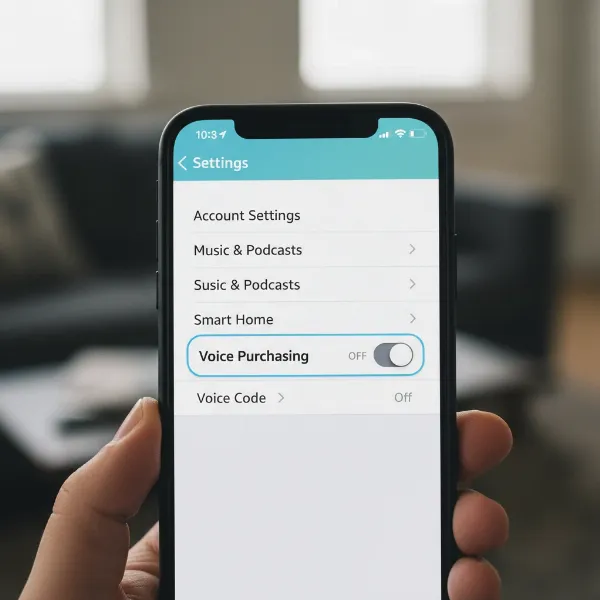 Alexa app screen showing voice purchasing settings and toggle to disable it
Step-by-Step Guide: Disabling Voice Purchasing on Google Assistant
Google Assistant, found on Google Home, Nest devices, and various Android devices, also features voice-enabled purchasing capabilities, often linked to Google Express or other integrated services. While Google’s payment settings are often disabled by default, it’s wise to double-check and secure them to prevent accidental orders.
Disabling Voice Purchasing via the Google Home App
The Google Home app is your central hub for managing all Google Assistant-enabled devices and their functionalities, including payment settings.
- Open the Google Home App: Launch the Google Home app on your smartphone or tablet.
- Access Settings: Tap on your profile picture (or the hamburger menu, depending on your app version) in the top-right corner. Then select “Assistant settings” or “Settings.”
- Navigate to Payments: Scroll down and locate the “Payments” option. Tap on it.
- Review and Manage Payment Methods: On the Payments screen, you can see your linked payment methods. To disable purchasing, you have a few options:
- Remove Payment Methods: The most straightforward way to prevent voice purchases is to delete any stored payment information. Tap on “Edit Payment Methods” and remove credit/debit cards or other payment sources. If no payment methods are on file, the Assistant cannot complete purchases.
- Toggle “Pay through your Assistant”: Some versions of the Google Home app might have a toggle or checkbox labeled “Pay through your Assistant” or similar. Ensure this option is switched off or unticked. This directly prevents the Assistant from initiating purchases using your voice.
By either removing your payment information or explicitly turning off the “Pay through your Assistant” option, you effectively disable voice purchasing through Google Assistant, safeguarding against accidental orders.
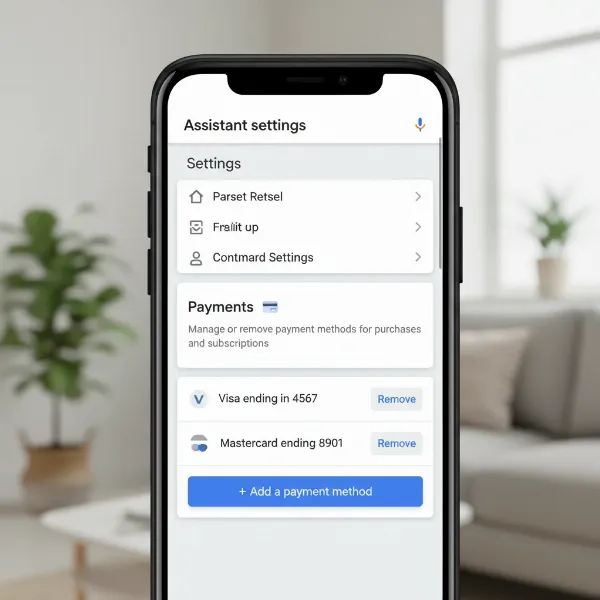 Google Home app screen demonstrating how to manage payment settings to prevent voice purchases
Essential Tips to Prevent Accidental Smart Speaker Orders
Beyond directly disabling voice purchasing features, several best practices can further enhance your smart speaker security and significantly reduce the likelihood of accidental orders. Implementing these tips creates a robust defense against unwanted transactions.
Utilize the Physical Mute Button
Almost all smart speakers come equipped with a physical microphone mute button. When activated, this button physically disconnects the microphone, preventing the device from hearing any commands, including wake words and purchase requests. This is the ultimate safeguard against any voice-triggered activity.
- Amazon Echo devices: Look for a microphone icon with a line through it. When pressed, a red light ring usually indicates the microphone is muted.
- Google Home/Nest devices: Locate the microphone switch on the back or side of the device.
Regularly muting your smart speaker, especially when not actively using it or when children are around, provides an immediate and foolproof way to prevent accidental orders.
Educate Household Members About Voice Purchasing
Communication is key, especially in a smart home environment. Take the time to explain the functionality of voice purchasing to all household members, particularly children.
- For children: Clearly articulate that making purchases requires explicit permission. Explain the concept of money and how “asking Alexa” or “Hey Google” for items is equivalent to buying them with real money. You might even use it as an opportunity to teach financial literacy.
- For guests: Inform visitors about your smart speaker settings and request that they avoid making purchase-related commands.
Setting clear expectations and boundaries can significantly reduce the risk of accidental orders and foster responsible use of smart technology within your home.
Regularly Review Your Order History and Account Settings
Even with the best precautions, it’s prudent to maintain vigilance. Make it a habit to regularly check your Amazon and Google order histories.
- Amazon: Log into your Amazon account and review “Your Orders” for any unfamiliar transactions.
- Google: Check your Google account’s activity and payment history.
If you spot an unauthorized or accidental purchase, most platforms offer straightforward return or cancellation processes. Regularly reviewing these histories allows you to catch and rectify such incidents quickly, preventing potential financial loss. Additionally, periodically revisit your smart speaker’s account settings to ensure no changes have been made without your knowledge and that your preferred security measures remain active.
Employ Strong Passcodes or PINs for Devices and Accounts
Beyond specific voice codes for purchasing, ensure all your connected accounts and devices are protected with strong, unique passwords. This adds another layer of security against unauthorized access to your smart speaker settings.
- Amazon Account: Use a strong password and enable two-factor authentication (2FA) for your Amazon account.
- Google Account: Implement a robust password and 2FA for your Google account.
This comprehensive approach to password security safeguards not just your smart speaker purchases but your entire digital ecosystem.
Consider Voice Match (Where Available and Appropriate)
Some smart speakers, like Google Home and certain Alexa devices, offer “Voice Match” technology, which allows the device to recognize individual voices and personalize responses. While not a direct security feature for purchasing, it can contribute to a more controlled environment. For instance, you could configure specific settings or restrictions to apply only to recognized voices. However, it’s important to note that voice recognition technology is not foolproof and can sometimes be bypassed or fooled by similar voices or recordings, so it should not be relied upon as the sole method of preventing accidental orders.
Maintenance and Best Practices for Smart Speaker Security
Maintaining the security and optimal functionality of your smart speakers goes beyond just managing voice purchasing. Regular maintenance and adherence to best practices ensure a secure and reliable smart home experience.
Keep Software Updated
Manufacturers frequently release software updates for smart speakers. These updates often include security patches, bug fixes, and new features. Ensuring your device’s software is always up-to-date is crucial for protection against newly discovered vulnerabilities that could potentially be exploited.
- Automatic Updates: Most smart speakers are configured to update automatically. Verify that this feature is enabled in your device settings.
- Manual Checks: Periodically check for available updates in the companion app (e.g., Alexa app, Google Home app) to ensure your device isn’t missing critical security improvements.
An outdated system is a vulnerable system. Keeping your smart speaker’s software current is a fundamental step in maintaining its overall security.
Secure Your Wi-Fi Network
Your smart speaker relies heavily on your home Wi-Fi network to function. A compromised Wi-Fi network can expose not just your smart speaker but all connected devices to security risks.
- Strong Password: Use a strong, unique password for your Wi-Fi network (WPA2 or WPA3 encryption is recommended). Avoid default passwords.
- Change Default Router Credentials: Change the default username and password for your router’s administration page.
- Guest Network: Consider setting up a separate guest Wi-Fi network for visitors. This isolates your main network and smart devices from potential security issues introduced by guest devices.
A secure home network forms the foundation of a secure smart home, preventing unauthorized access that could lead to accidental orders or other privacy breaches.
Strategic Physical Placement
The physical location of your smart speaker can also play a role in preventing accidental orders.
- Away from TVs and Loud Speakers: Placing your smart speaker away from other sound sources can minimize the chances of it misinterpreting background noise as commands or wake words, which could inadvertently trigger purchasing attempts.
- Consider High-Traffic Areas: In areas with many people, especially children, consider devices with physical mute buttons or those placed out of easy reach or earshot for general commands, or ensure voice purchasing is completely disabled.
Thoughtful placement can help reduce unintended interactions and maintain better control over your device’s responses.
“Smart speakers offer incredible convenience, but with great power comes great responsibility. Proactively managing voice purchasing settings and educating your household are fundamental steps to ensuring your technology serves you, without unexpected surprises.” – Jane Doe, Smart Home Security Expert
Conclusion
The convenience of voice purchasing through smart speakers is undeniable, but the risk of accidental orders makes careful management essential for any smart home owner. By taking proactive steps to disable voice purchasing on platforms like Amazon Alexa and Google Assistant, or by implementing robust security measures such as voice codes and strong account passwords, you can regain full control over your smart devices. Furthermore, adopting best practices like regularly reviewing order histories, securing your Wi-Fi, and educating your household members creates a comprehensive defense against unintended transactions.
Empowering yourself with the knowledge to manage these settings not only prevents accidental purchases but also enhances the overall security and peace of mind within your smart home ecosystem. Don’t let a simple voice command lead to an unexpected delivery—take charge of your smart speaker’s purchasing power today.
What steps will you take to secure your smart speaker against accidental orders, and how will you communicate these changes to your family?
Frequently Asked Questions
Can I temporarily disable voice purchasing on my smart speaker?
Yes, most smart speakers allow you to temporarily disable voice purchasing by toggling the feature off in the associated app (e.g., Alexa app, Google Home app). You can re-enable it whenever you wish. For a quicker, temporary solution, you can also press the physical mute button on your Smart Speaker.
What if my child accidentally orders something even after I’ve taken precautions?
If an accidental order occurs, immediately check your Amazon or Google order history. Most platforms allow you to cancel recent orders or initiate a return if the item has already shipped. Act quickly to ensure a smooth resolution and consider reinforcing your security settings or educating your household members further.